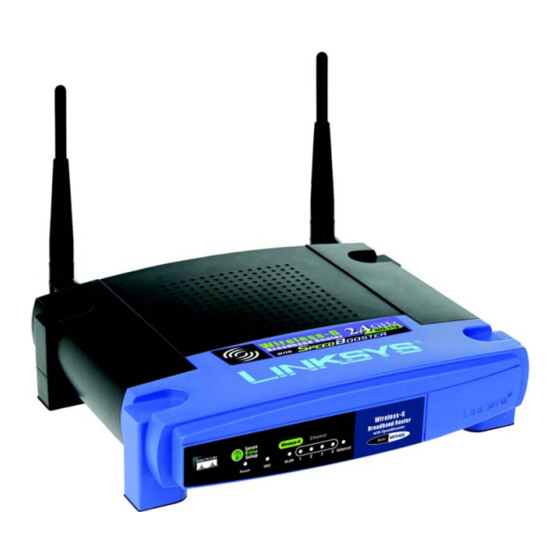
Linksys WRT54GS Handbücher
Anleitungen und Benutzerhandbücher für Linksys WRT54GS. Wir haben 4 Linksys WRT54GS Anleitungen zum kostenlosen PDF-Download zur Verfügung: Anleitung, Bedienungsanleitung, Benutzerhandbuch
Linksys WRT54GS Bedienungsanleitung (405 Seiten)
Einfache Einrichtung in drei Schritten
Inhaltsverzeichnis
-
Inhaltsverzeichnis3
-
List of Figures6
-
Chapter 1: Introduction11
-
Welcome11
-
What's in this Guide12
-
Chapter 2: Planning Your Wireless Network14
-
Network Topology14
-
Ad-Hoc Versus Infrastructure Mode14
-
Network Layout14
-
Chapter 2: Planning Your Wireless Network Network Layout15
-
Chapter 3: Getting to Know the Wireless-G Broadband Router16
-
The Back Panel16
-
Figure 3-1: the Router's Back Panel16
-
The Front Panel17
-
Figure 3-2: the Router's Front Panel17
-
Chapter 4: Connecting the Wireless-G Broadband Router18
-
Overview18
-
Hardware Installation for Connection to Your Broadband Modem18
-
Figure 4-1: Connecting Your Modem18
-
Figure 4-2: Connecting Your Network Devices19
-
Figure 4-3: Connecting the Power19
-
Connecting One Router to Another20
-
Figure 4-4: Connecting the Router Behind Another20
-
Figure 4-5: Diagram for Connection to Another Router20
-
Chapter 4: Connecting the Wireless-G Broadband Router Connecting One Router to Another20
-
Figure 4-6: the Router with the Internet Connection Is Connected through the Internet Port21
-
Figure 4-7: Connecting Your Network Devices21
-
Figure 4-8: Connecting the Power22
-
Chapter 5: Setting up the Wireless-G Broadband Router23
-
Overview23
-
Using the Setup Wizard23
-
Figure 5-1: Setup Wizard's Welcome - Language Selection Screen23
-
Figure 5-2: Setup Wizard's Welcome - Start Wizard Screen23
-
Figure 5-3: Setup Wizard's License Agreement Screen24
-
Figure 5-4: Setup Wizard's Disconnect the Modem from the PC Screen24
-
Chapter 5: Setting up the Wireless-G Broadband Router Using the Setup Wizard24
-
Figure 5-5: Setup Wizard's Connect the Modem to the Router Screen25
-
Figure 5-6: Setup Wizard's Connect a Network Cable to a PC Screen25
-
Figure 5-7: Setup Wizard's Connect the Network Cable to the Router Screen26
-
Figure 5-8: Setup Wizard's Power on the Router Screen26
-
Figure 5-9: Setup Wizard's Check the Router's Status Screen27
-
Figure 5-10: Setup Wizard's Configure Cable or DHCP Settings Screen27
-
Figure 5-11: Setup Wizard's Configure DSL (Pppoe) Settings Screen28
-
Figure 5-12: Setup Wizard's Advanced Internet Settings - Static IP Screen28
-
Figure 5-13: Setup Wizard's Advanced Internet Settings - PPTP Screen29
-
Figure 5-14: Setup Wizard's Keep Alive/Connect on Demand (PPTP Continued) Screen29
-
Figure 5-15: Setup Wizard's Advanced Internet Settings - L2TP Screen30
-
Figure 5-16: Setup Wizard's Advanced Internet Settings - Telstra Screen31
-
Figure 5-17: Setup Wizard's Set the Router's Password Screen32
-
Figure 5-18: Setup Wizard's Configure Wireless Settings Screen32
-
Figure 5-19: Setup Wizard's Secureeasysetup Screen33
-
Figure 5-20: Secureeasysetup Logo33
-
Figure 5-21: Additional Information - Hardware Button33
-
Figure 5-22: Additional Information - Software Button33
-
Figure 5-23: Setup Wizard's Configure Wireless Settings Screen34
-
Figure 5-24: Setup Wizard's Confirm New Settings Screen34
-
Figure 5-25: Setup Wizard's Safe Surfing Screen35
-
Figure 5-26: Setup Wizard's Congratulations Screen35
-
Figure 5-27: Setup Wizard's Configure Wireless Settings Screen36
-
Figure 5-28: Setup Wizard's Wireless Settings Screen36
-
Figure 5-29: Setup Wizard's Wireless Security - WPA-PSK Screen37
-
Figure 5-30: Setup Wizard's Wireless Security - WEP (64-Bit) Screen38
-
Figure 5-31: Setup Wizard's Confirm New Settings Screen38
-
Figure 5-32: Setup Wizard's Safe Surfing Screen39
-
Figure 5-33: Setup Wizard's Congratulations Screen39
-
Using Secureeasysetup to Configure Your Notebook40
-
Figure 5-34: Setup Wizard's Welcome - Start Wizard Screen40
-
Figure 5-35: Secureeasysetup Welcome Screen40
-
Chapter 5: Setting up the Wireless-G Broadband Router Using Secureeasysetup to Configure Your Notebook40
-
Figure 5-36: Configure Wireless Settings #1 Screen41
-
Figure 5-37: Configure Wireless Settings #2 Screen41
-
Figure 5-38: Your Wireless Settings Screen42
-
Chapter 6: Configuring the Wireless-G Broadband Router43
-
Overview43
-
Figure 6-1: Password Screen43
-
The Setup Tab - Basic Setup44
-
Figure 6-2: Setup Tab - Basic Setup44
-
Figure 6-3: DHCP Connection Type44
-
Figure 6-4: Static IP Connection Type44
-
Figure 6-5: Pppoe Connection Type45
-
Figure 6-6: PPTP Connection Type45
-
Figure 6-7: L2TP Connection Type46
-
Figure 6-8: Telstra Connection Type46
-
The Setup Tab - DDNS49
-
Chapter 6: Configuring the Wireless-G Broadband Router the Setup Tab - DDNS49
-
The Setup Tab - MAC Address Clone50
-
Figure 6-13: Setup Tab - DDNS50
-
The Setup Tab - Advanced Routing51
-
Figure 6-14: Setup Tab - MAC Address Clone51
-
Chapter 6: Configuring the Wireless-G Broadband Router51
-
Chapter 6: Configuring the Wireless-G Broadband Router the Setup Tab - Advanced Routing51
-
The Wireless Tab - Basic Wireless Settings52
-
Figure 6-15: Setup Tab - Advanced Routing (Gateway)52
-
Figure 6-16: Setup Tab - Advanced Routing (Router)52
-
The Wireless Tab - Wireless Security53
-
Figure 6-17: Wireless Tab - Basic Wireless Settings53
-
Chapter 6: Configuring the Wireless-G Broadband Router the Wireless Tab - Wireless Security53
-
Figure 6-18: Wireless Tab - Wireless Security (WPA Pre-Shared Key)54
-
Figure 6-19: Wireless Tab - Wireless Security (WPA RADIUS)54
-
The Wireless Tab - Wireless MAC Filter55
-
Figure 6-20: Wireless Tab - Wireless Security (RADIUS)55
-
Figure 6-21: Wireless Tab - Wireless Security (WEP)55
-
The Wireless Tab - Advanced Wireless Settings56
-
Figure 6-22: Wireless Tab - Wireless MAC Filter56
-
Figure 6-23: MAC Address Filter List56
-
Figure 6-24: Wireless Tab - Advanced Wireless Settings57
-
The Security Tab - Firewall58
-
The Security Tab - VPN Passthrough58
-
Chapter 6: Configuring the Wireless-G Broadband Router the Security Tab - Firewall58
-
Figure 6-25: Security Tab - Firewall59
-
Figure 6-26: Security Tab - VPN Passthrough59
-
Chapter 6: Configuring the Wireless-G Broadband Router the Security Tab - VPN Passthrough59
-
The Access Restrictions Tab - Parental Control60
-
Figure 6-27: Access Restrictions Tab - Parental Control60
-
The Access Restrictions Tab - Internet Access61
-
To Create an Internet Access Policy61
-
Figure 6-28: Access Restrictions Tab - Internet Access61
-
Figure 6-29: Internet Policy Summary61
-
Figure 6-30: List of Pcs61
-
Figure 6-31: Port Services62
-
The Applications and Gaming Tab - Port Range Forward63
-
Figure 6-32: Applications and Gaming Tab - Port Range Forward63
-
The Applications & Gaming Tab - Port Triggering64
-
Figure 6-33: Applications and Gaming Tab - Port Triggering64
-
The Applications and Gaming Tab - DMZ65
-
Qos65
-
Figure 6-34: Applications and Gaming Tab - DMZ65
-
Figure 6-35: Applications and Gaming Tab - Qos65
-
The Administration Tab - Management67
-
The Administration Tab - Log67
-
Chapter 6: Configuring the Wireless-G Broadband Router the Administration Tab - Management67
-
Figure 6-36: Administration Tab - Management67
-
Figure 6-37: Administration Tab - Log67
-
The Administration Tab - Diagnostics68
-
Figure 6-38: Administration Tab - Diagnostics68
-
Figure 6-39: the Ping Test68
-
Figure 6-40: the Traceroute Test68
-
Chapter 6: Configuring the Wireless-G Broadband Router the Administration Tab - Diagnostics68
-
The Administration Tab - Factory Defaults69
-
The Administration Tab - Firmware Upgrade69
-
Chapter 6: Configuring the Wireless-G Broadband Router the Administration Tab - Factory Defaults69
-
Figure 6-41: Administration Tab - Factory Defaults69
-
Figure 6-42: Administration Tab - Firmware Upgrade69
-
The Administration Tab - Config Management70
-
Figure 6-43: Administration Tab - Config Management70
-
Chapter 6: Configuring the Wireless-G Broadband Router the Administration Tab - Config Management70
-
The Status Tab - Router71
-
Figure 6-44: Status Tab - Router71
-
Chapter 6: Configuring the Wireless-G Broadband Router the Status Tab - Router71
-
The Status Tab - Local Network72
-
Figure 6-45: Status Tab - Local Network72
-
Figure 6-46: DHCP Clients Table72
-
Chapter 6: Configuring the Wireless-G Broadband Router the Status Tab - Local Network72
-
The Status Tab - Wireless73
-
Figure 6-47: Status Tab - Wireless73
-
Chapter 6: Configuring the Wireless-G Broadband Router the Status Tab - Wireless73
-
Chapter 7: Using the Linksys Parental Control Service74
-
Overview74
-
Introduction74
-
Chapter 7: Using the Linksys Parental Control Service Overview74
-
Signing up for the Linksys Parental Control Service75
-
Setup Wizard75
-
Figure 7-1: Safe Surfing75
-
Figure 7-2: Access Restrictions Tab - Parental Control75
-
Figure 7-3: Linksys Service Agreement76
-
Figure 7-4: Sign up76
-
Figure 7-5: Purchase Service77
-
Figure 7-6: Connecting to the Parental Control Service78
-
Figure 7-7: Congratulations78
-
Managing Linksys Parental Controls79
-
Figure 7-8: Parental Controls Login79
-
Chapter 7: Using the Linksys Parental Control Service Managing Linksys Parental Controls79
-
Support Center80
-
Figure 7-9: Support Center80
-
Figure 7-10: Subscribe to Service80
-
Chapter 7: Using the Linksys Parental Control Service Support Center80
-
Figure 7-11: Update Contact Information81
-
Figure 7-12: Cancel Your Parental Control Account81
-
Activity Reports82
-
Figure 7-13: Activity Reports82
-
Figure 7-14: Types of Reports82
-
Chapter 7: Using the Linksys Parental Control Service Activity Reports82
-
Figure 7-15: Web Report83
-
Family Settings84
-
Chapter 7: Using the Linksys Parental Control Service Family Settings84
-
Suggest a Rating92
-
Using the Parental Control Service92
-
Chapter 7: Using the Linksys Parental Control Service Suggest a Rating92
-
Figure 7-32: Tray Icon93
-
Figure 7-33: Pop-Up Screen (Login)93
-
Figure 7-34: Pop-Up Screen (Sign Out)94
-
Appendix A: Troubleshooting95
-
Common Problems and Solutions95
-
Frequently Asked Questions104
-
Appendix B: Wireless Security111
-
Security Precautions111
-
Security Threats Facing Wireless Networks111
-
Appendix C: Upgrading Firmware114
-
Appendix D: Windows Help115
-
Appendix E: Finding the MAC Address and IP Address for Your Ethernet Adapter116
-
Windows 98SE or Me Instructions116
-
Windows 2000 or XP Instructions116
-
For the Router's Web-Based Utility117
-
Appendix F: Glossary118
-
Appendix G: Specifications124
-
Appendix H: Warranty Information126
-
Appendix I: Regulatory Information127
-
Appendix J: Contact Information134
-
Chapitre 1 : Introduction145
-
Bienvenue145
-
Contenu de Ce Guide146
-
Chapitre 2 : Planification de Votre Réseau Sans Fil148
-
Topologie Réseau148
-
Mode ad Hoc et Mode Infrastructure148
-
Configuration du Réseau149
-
Chapitre 3 : Présentation du Routeur Haut Débit Sans Fil - G150
-
Panneau Arrière150
-
Figure 3-1 : Panneau Arrière du Routeur150
-
Panneau Avant151
-
Figure 3-2 : Panneau Avant du Routeur151
-
Chapitre 4 : Connexion du Routeur Haut Débit Sans Fil - G152
-
Présentation152
-
Installation du Matériel pour la Connexion à Votre Modem Haut Débit152
-
Figure 4-1 : Connexion du Modem152
-
Figure 4-2 : Connexion de Vos Périphériques Réseau153
-
Figure 4-3 : Connexion de L'alimentation153
-
Interconnexion de Deux Routeurs154
-
Figure 4-4 : Connexion du Routeur Derrière un Autre Routeur154
-
Figure 4-5 : Schéma de Connexion à un Autre Routeur154
-
Figure 4-6 : le Routeur Relié à la Connexion à Internet Est Connecté Via le Port Internet155
-
Figure 4-7 : Connexion de Vos Périphériques Réseau155
-
Figure 4-8 : Connexion de L'alimentation156
-
Chapitre 5 : Configuration du Routeur Haut Débit Sans Fil - G157
-
Présentation157
-
Utilisation de L'assistant de Configuration157
-
Figure 5-1 : Ecran Welcome - Language Selection (Bienvenue - Sélection de la Langue) de L'assistant de Configuration157
-
Figure 5-2 : Ecran Welcome - Start Wizard (Bienvenue - Lancer L'assistant) de L'assistant de Configuration157
-
Figure 5-3 : Ecran License Agreement (Accord de Licence) de L'assistant de Configuration158
-
Figure 5-4 : Ecran Disconnect the Modem from the PC (Déconnecter le Modem du PC) de L'assistant de Configuration158
-
Figure 5-5 : Ecran Connect the Modem to the Router (Connecter le Modem au Routeur) de L'assistant de Configuration159
-
Figure 5-6 : Ecran Connect a Network Cable to a PC (Connecter un Câble Réseau à un Ordinateur)159
-
Figure 5-7 : Ecran Connect the Network Cable to the Router (Connecter le Câble Réseau au Routeur) de L'assistant de Configuration160
-
Figure 5-8 : Ecran Power on the Router (Mise Sous Tension du Routeur) de L'assistant de Configuration160
-
Figure 5-9 : Ecran Check the Router's Status (Vérifier L'état du Routeur) de L'assistant de Configuration161
-
Figure 5-10 : Ecran Configure Cable or DHCP Settings161
-
Figure 5-11 : Ecran Configure DSL (Pppoe) Settings (Configuration des Paramètres DSL (Pppoe)) de L'assistant de Configuration162
-
Figure 5-12 : Ecran Advanced Internet Settings - Static IP (Paramètres Internet Avancés - IP Statique) de L'assistant de Configuration162
-
Figure 5-13 : Ecran Advanced Internet Settings - PPTP (Paramètres Internet Avancés - PPTP) de L'assistant de Configuration163
-
Figure 5-14 : Ecran Keep Alive/Connect on Demand (PPTP Continued) (Maintenir la Connexion/Connexion à la Demande (PPTP)) de L'assistant de Configuration163
-
Figure 5-15 : Ecran Advanced Internet Settings - L2TP (Paramètres Internet Avancés - L2TP) de L'assistant de Configuration164
-
Figure 5-16 : Ecran Advanced Internet Settings - Telstra (Paramètres Internet Avancés - Telstra) de L'assistant de Configuration165
-
Figure 5-17 : Ecran Set the Router's Password (Définir le Mot de Passe du Routeur) de L'assistant de Configuration166
-
Figure 5-18 : Ecran Configure Wireless Settings (Configurer les Paramètres Sans Fil) de L'assistant de Configuration166
-
Figure 5-19 : Ecran Secureeasysetup de L'assistant de Configuration167
-
Figure 5-20 : Logo Secureeasysetup167
-
Figure 5-21 : Informations Supplémentaires - Bouton Matériel167
-
Figure 5-22 : Informations Supplémentaires - Bouton Logiciel167
-
Figure 5-23 : Ecran Configure Wireless Settings (Configuration des Paramètres Sans Fil) de L'assistant de Configuration168
-
Figure 5-24 : Ecran Confirm New Settings (Confirmation des Nouveaux Paramètres) de L'assistant de Configuration168
-
Figure 5-25 : Ecran Safe Surfing (Surf Sécurisé) de L'assistant de Configuration169
-
Figure 5-26 : Ecran Congratulations (Félicitations) de L'assistant de Configuration169
-
Figure 5-27 : Ecran Configure Wireless Settings (Configuration des Paramètres Sans Fil) de L'assistant de Configuration170
-
Figure 5-28 : Ecran Wireless Settings (Paramètres Sans Fil) de L'assistant de Configuration170
-
Figure 5-29 : Ecran Wireless Security - WPA-PSK (Sécurité Sans Fil - WPA-PSK) de L'assistant de Configuration171
-
Figure 5-30 : Ecran Wireless Security - WEP (64-Bit) (Sécurité Sans Fil - WEP (64 Bits))172
-
Figure 5-31 : Ecran Confirm New Settings (Confirmation des Nouveaux Paramètres) de L'assistant de Configuration172
-
Figure 5-32 : Ecran Safe Surfing (Surf Sécurisé) de L'assistant de Configuration173
-
Figure 5-33 : Ecran Congratulations (Félicitations) de L'assistant de Configuration173
-
Utilisation de la Fonction Secureeasysetup pour Configurer Votre Ordinateur Portable174
-
Figure 5-34 : Ecran Welcome - Start Wizard (Bienvenue - Lancer L'assistant) de L'assistant de Configuration174
-
Figure 5-35 : Ecran Secureeasysetup Welcome (Bienvenue Secureeasysetup)174
-
Figure 5-36 : Ecran Configure Wireless Settings #1175
-
Figure 5-38 : Ecran Your Wireless Settings (Vos Paramètres Sans Fil)176
-
Chapitre 6 : Configuration du Routeur Haut Débit Sans Fil - G177
-
Présentation177
-
Figure 6-1 : Ecran de Saisie du Mot de Passe177
-
Onglet Setup - Basic Setup (Configuration - Configuration de Base)178
-
Figure 6-2 : Onglet Setup - Basic Setup (Configuration - Configuration de Base)178
-
Figure 6-3 : Type de Connexion DHCP178
-
Figure 6-4 : Type de Connexion IP Statique178
-
Figure 6-5 : Type de Connexion Pppoe179
-
Figure 6-6 : Type de Connexion PPTP179
-
Figure 6-7 : Type de Connexion L2TP180
-
Figure 6-8 : Type de Connexion Telstra180
-
Figure 6-9: Optional Settings181
-
Figure 6-10: Router IP181
-
Figure 6-11: Network Address Server Settings181
-
Figure 6-11 : Network Address Server Settings (DHCP)181
-
Figure 6-12: Time Setting182
-
Onglet Setup (Configuration) - DDNS183
-
Figure 6-13 : Onglet Setup (Configuration) - DDNS183
-
Onglet Setup - MAC Address Clone (Configuration - Adresse MAC Dupliquée)184
-
Figure 6-14 : Onglet Setup - MAC Address Clone (Configuration - Adresse MAC Dupliquée)184
-
Onglet Setup - Advanced Routing (Configuration - Routage Avancé)185
-
Figure 6-15 : Onglet Setup - Advanced Routing (Gateway) (Configuration - Routage Avancé (Passerelle))185
-
Figure 6-16 : Onglet Setup - Advanced Routing (Router) (Configuration - Routage Avancé (Routeur))185
-
Onglet Wireless - Basic Wireless Settings (Sans Fil - Paramètres Sans Fil de Base)186
-
Figure 6-17 : Onglet Wireless - Basic Wireless Settings (Sans Fil - Paramètres Sans Fil de Base)186
-
Onglet Wireless - Wireless Security (Sans Fil - Sécurité Sans Fil)187
-
Figure 6-18 : Onglet Wireless - Wireless Security (WPA Pre-Shared Key) (Sans Fil - Sécurité Sans Fil (Clé WPA Pré-Partagée))187
-
Figure 6-19 : Onglet Wireless - Wireless Security (WPA RADIUS) (Sans Fil - Sécurité Sans Fil (WPA RADIUS))187
-
Figure 6-20 : Onglet Wireless - Wireless Security (RADIUS) (Sans Fil - Sécurité Sans Fil (RADIUS))188
-
Figure 6-21 : Onglet Wireless - Wireless Security (WEP) (Sans Fil - Sécurité Sans Fil (WEP))188
-
Onglet Wireless - Wireless MAC Filter (Sans Fil - Filtre MAC Sans Fil)189
-
Figure 6-22 : Onglet Wireless - Wireless MAC Filter (Sans Fil - Filtre MAC Sans Fil)189
-
Figure 6-23 : Liste de Filtrage des Adresses MAC189
-
Onglet Wireless - Advanced Wireless Settings (Sans Fil - Paramètres Sans Fil Avancés)190
-
Figure 6-24 : Onglet Wireless - Advanced Wireless Settings (Sans Fil - Paramètres Sans Fil Avancés)190
-
Onglet Security - Firewall (Sécurité - Pare-Feu)192
-
Onglet Security - VPN Passthrough (Sécurité - Intercommunication VPN)192
-
Figure 6-25 : Onglet Security - Firewall (Sécurité - Pare-Feu)192
-
Figure 6-26 : Onglet Security - VPN Passthrough (Sécurité - Intercommunication VPN)192
-
Onglet Access Restrictions - Parental Control (Restrictions D'accès - Contrôle Parental)193
-
Figure 6-27 : Onglet Access Restrictions - Parental Control (Restrictions D'accès - Contrôle Parental)193
-
Onglet Access Restrictions - Internet Access (Restrictions D'accès - Accès Internet)194
-
Figure 6-28 : Onglet Access Restrictions - Internet Access (Restrictions D'accès - Accès Internet)194
-
Figure 6-29 : Récapitulatif de la Stratégie Internet194
-
Figure 6-30 : Liste des Ordinateurs194
-
Figure 6-31 : Services des Ports195
-
Onglet Applications and Gaming - Port Range Forward (Applications et Jeux - Transfert de Connexion)196
-
Figure 6-32 : Onglet Applications and Gaming - Port Range Forward (Applications et Jeux - Transfert de Connexion)196
-
Onglet Applications & Gaming - Port Triggering (Applications et Jeux - Déclenchement de Connexion)197
-
Figure 6-33 : Onglet Applications & Gaming - Port Triggering (Applications et Jeux - Déclenchement de Connexion)197
-
Onglet Applications and Gaming (Applications et Jeux) - DMZ198
-
Qos198
-
Figure 6-34 : Onglet Applications and Gaming (Applications et Jeux) - DMZ198
-
Figure 6-35 : Onglet Applications and Gaming (Applications et Jeux) - Qos198
-
Onglet Administration - Management (Gestion)200
-
Onglet Administration - Log (Fichier Journal)200
-
Figure 6-36 : Onglet Administration - Management (Gestion)200
-
Figure 6-37 : Onglet Administration - Log (Fichier Journal)200
-
Onglet Administration - Diagnostics201
-
Figure 6-38 : Onglet Administration - Diagnostics201
-
Figure 6-39 : Test Ping201
-
Figure 6-40 : Test de Détermination D'itinéraire201
-
Onglet Administration - Factory Defaults (Paramètres Usine Par Défaut)202
-
Onglet Administration - Firmware Upgrade (Mise à Niveau du Micrologiciel)202
-
Figure 6-41 : Onglet Administration - Factory Defaults (Paramètres Usine Par Défaut)202
-
Figure 6-42 : Onglet Administration - Firmware Upgrade (Mise à Niveau du Micrologiciel)202
-
Onglet Administration - Config Management (Gestion de la Configuration)203
-
Figure 6-43 : Onglet Administration - Config Management (Gestion de la Configuration)203
-
Onglet Status - Router (Etat - Routeur)204
-
Figure 6-44 : Onglet Status - Router (Etat - Routeur)204
-
Onglet Status - Local Network (Etat - Réseau Local)205
-
Figure 6-45 : Onglet Status - Local Network (Etat - Réseau Local)205
-
Figure 6-46 : Tableau des Clients DHCP205
-
Figure 6-47 : Onglet Status - Wireless (Etat - Sans Fil)206
-
Chapitre 7 : Utilisation du Service de Contrôle Parental de Linksys207
-
Présentation207
-
Introduction207
-
Inscription au Service de Contrôle Parental de Linksys208
-
Assistant de Configuration208
-
Figure 7-1 : Ecran Safe Surfing (Surf Sécurisé)208
-
Figure 7-2 : Onglet Access Restrictions - Parental Control (Restrictions D'accès - Contrôle Parental)208
-
Figure 7-3 : Contrat de Service Linksys209
-
Figure 7-4 : Inscription209
-
Figure 7-5 : Achat du Service210
-
Figure 7-6 : Connexion au Service de Contrôle Parental de Linksys211
-
Figure 7-7 : Félicitations211
-
Gestion du Contrôle Parental de Linksys212
-
Figure 7-8 : Connexion au Contrôle Parental212
-
Centre de Support213
-
Figure 7-9 : Centre de Support213
-
Figure 7-10 : Souscription au Service213
-
Figure 7-11 : Mise à Jour des Informations de Contact214
-
Figure 7-12 : Annulation de Votre Compte de Contrôle Parental214
-
Rapports D'activité215
-
Figure 7-13 : Rapports D'activité215
-
Figure 7-14 : Types de Rapport215
-
Figure 7-15 : Rapport Web216
-
Figure 7-16: Family Settings217
-
Figure 7-17: New Family Member217
-
Family Settings (Paramètres Familiaux)217
-
Figure 7-17 : New Family Member (Nouveau Membre de la Famille)217
-
Figure 7-18: All Settings218
-
Figure 7-19: Online Reporting218
-
Figure 7-20: Maturity Level219
-
Figure 7-21: Time Restrictions220
-
Figure 7-21 : Time Restrictions (Restrictions Temporelles)220
-
Figure 7-22: Web Browsing Restrictions221
-
Figure 7-23: Web Site Categories221
-
Figure 7-22 : Web Browsing Restrictions (Restrictions de Navigation)221
-
Figure 7-23 : Web Site Categories (Catégories de Sites Web)221
-
Figure 7-24: Blocked & Allowed Web Sites222
-
Figure 7-24 : Blocked & Allowed Web Sites (Sites Web Bloqués et Autorisés)222
-
Figure 7-25: E-Mail Restrictions223
-
Figure 7-26: E-Mail Settings223
-
Figure 7-25 : E-Mail Restrictions (Restrictions de la Messagerie Électronique)223
-
Figure 7-26 : E-Mail Settings (Paramètres de Messagerie Électronique)223
-
Figure 7-27: Instant-Messaging Restrictions224
-
Figure 7-28: Password224
-
Figure 7-27 : Instant-Messaging Restrictions (Restrictions de la Messagerie Instantanée)224
-
Figure 7-29: Suggest a Rating225
-
Figure 7-30: Security Warning225
-
Suggest a Rating (Estimations)225
-
Figure 7-31: Welcome to Parental Controls226
-
Figure 7-31 : Welcome to Parental Controls (Bienvenue au Service de Contrôle Parental)226
-
Figure 7-32 : ICône de la Barre D'état226
-
Figure 7-33 : Ecran Contextuel de Connexion226
-
Figure 7-34 : Ecran Contextuel de Déconnexion227
-
Figure 7-35 : Clic Droit Sur L'ICône de la Barre D'état227
-
Figure 7-36 : Réactivation de L'ICône de la Barre D'état227
-
Annexe A : Dépannage228
-
Problèmes Courants et Solutions228
-
Questions Fréquemment Posées238
-
Annexe B : Sécurité Sans Fil245
-
Mesures de Sécurité245
-
Menaces Liées à la Sécurité des Réseaux Sans Fil245
-
Annexe C : Mise à Niveau du Micrologiciel248
-
Annexe D : Aide de Windows249
-
Annexe E : Recherche des Adresses MAC et IP de Votre Adaptateur Ethernet250
-
Instructions pour Windows 98 se ou Windows Me250
-
Instructions pour Windows 2000 ou Windows XP250
-
Pour L'utilitaire Web du Routeur251
-
Annexe F : Glossaire252
-
Annexe G : Spécifications258
-
Annexe H : Informations de Garantie260
-
Annexe I : Réglementation261
-
Annexe J : Contacts268
-
Willkommen280
-
Rückseite285
-
Vorderseite286
-
Übersicht292
Linksys WRT54GS Bedienungsanleitung (333 Seiten)
2.4 GHz, 802.11g
Marke: Linksys
|
Kategorie: Netzwerkrouter
| Dateigröße: 6 MB
Inhaltsverzeichnis
-
Inhaltsverzeichnis3
-
List of Figures5
-
Chapter 1: Introduction9
-
Welcome9
-
What's in this Guide10
-
Chapter 2: Planning Your Wireless Network12
-
Network Topology12
-
Ad-Hoc Versus Infrastructure Mode12
-
Network Layout12
-
Chapter 3: Getting to Know the Wireless-G Broadband Router14
-
The Back Panel14
-
Figure 3-1: the Router's Back Panel14
-
The Front Panel15
-
Figure 3-2: the Router's Front Panel15
-
Chapter 4: Connecting the Wireless-G Broadband Router16
-
Overview16
-
Hardware Installation for Connection to Your Broadband Modem16
-
Figure 4-2: Connecting Your Network Devices17
-
Figure 4-3: Connecting the Power17
-
Connecting One Router to Another18
-
Figure 4-4: Connecting the Router Behind Another18
-
Figure 4-5: Diagram for Connection to Another Router18
-
Chapter 4: Connecting the Wireless-G Broadband Router Connecting One Router to Another18
-
Figure 4-6: the Router with the Internet Connection Is Connected through the Internet Port19
-
Figure 4-7: Connecting Your Network Devices19
-
Figure 4-8: Connecting the Power20
-
Chapter 5: Setting up the Wireless-G Broadband Router21
-
Overview21
-
Using the Setup Wizard21
-
Figure 5-1: Setup Wizard's Welcome - Language Selection Screen21
-
Figure 5-2: Setup Wizard's Welcome - Start Wizard Screen21
-
Figure 5-3: Setup Wizard's License Agreement Screen22
-
Figure 5-4: Setup Wizard's Disconnect the Modem from the PC Screen22
-
Chapter 5: Setting up the Wireless-G Broadband Router Using the Setup Wizard22
-
Figure 5-5: Setup Wizard's Connect the Modem to the Router Screen23
-
Figure 5-6: Setup Wizard's Connect a Network Cable to a PC Screen23
-
Figure 5-7: Setup Wizard's Connect the Network Cable to the Router Screen24
-
Figure 5-8: Setup Wizard's Power on the Router Screen24
-
Figure 5-9: Setup Wizard's Check the Router's Status Screen25
-
Figure 5-10: Setup Wizard's Configure Cable or DHCP Settings Screen25
-
Figure 5-11: Setup Wizard's Configure DSL (Pppoe) Settings Screen26
-
Figure 5-12: Setup Wizard's Advanced Internet Settings - Static IP Screen26
-
Figure 5-13: Setup Wizard's Advanced Internet Settings - PPTP Screen27
-
Figure 5-14: Setup Wizard's Keep Alive/Connect on Demand (PPTP Continued) Screen27
-
Figure 5-15: Setup Wizard's Advanced Internet Settings - L2TP Screen28
-
Figure 5-16: Setup Wizard's Advanced Internet Settings - Telstra Screen29
-
Figure 5-17: Setup Wizard's Set the Router's Password Screen30
-
Figure 5-18: Setup Wizard's Configure Wireless Settings Screen30
-
Figure 5-19: Setup Wizard's Secureeasysetup Screen31
-
Figure 5-20: Secureeasysetup Logo31
-
Figure 5-21: Additional Information - Hardware Button31
-
Figure 5-22: Additional Information - Software Button31
-
Figure 5-23: Setup Wizard's Configure Wireless Settings Screen32
-
Figure 5-24: Setup Wizard's Confirm New Settings Screen32
-
Figure 5-25: Setup Wizard's Safe Surfing Screen33
-
Figure 5-26: Setup Wizard's Congratulations Screen33
-
Figure 5-27: Setup Wizard's Configure Wireless Settings Screen34
-
Figure 5-28: Setup Wizard's Wireless Settings Screen34
-
Figure 5-29: Setup Wizard's Wireless Security - WPA-PSK Screen35
-
Figure 5-30: Setup Wizard's Wireless Security - WEP (64-Bit) Screen36
-
Figure 5-31: Setup Wizard's Confirm New Settings Screen36
-
Figure 5-32: Setup Wizard's Norton Screen37
-
Figure 5-33: Setup Wizard's Congratulations Screen37
-
Figure 5-34: Setup Wizard's Welcome - Start Wizard Screen38
-
Figure 5-35: Secureeasysetup Welcome Screen38
-
Using Secureeasysetup to Configure Your Notebook39
-
Figure 5-36: Configure Wireless Settings #1 Screen39
-
Figure 5-37: Configure Wireless Settings #2 Screen39
-
Chapter 5: Setting up the Wireless-G Broadband Router Using Secureeasysetup to Configure Your Notebook39
-
Figure 5-38: Your Wireless Settings Screen40
-
Chapter 6: Configuring the Wireless-G Broadband Router42
-
Overview42
-
Figure 6-1: Password Screen42
-
The Setup Tab - Basic Setup43
-
Figure 6-2: Setup Tab - Basic Setup43
-
Figure 6-3: DHCP Connection Type43
-
Figure 6-4: Static IP Connection Type43
-
Figure 6-5: Pppoe Connection Type44
-
Figure 6-6: PPTP Connection Type44
-
Figure 6-8: L2TP Connection Type45
-
Figure 6-9: Optional Settings46
-
Figure 6-10: Router IP47
-
Figure 6-11: Network Address Server Settings47
-
Figure 6-12: Time Setting47
-
The Setup Tab - DDNS48
-
The Setup Tab - MAC Address Clone48
-
Chapter 6: Configuring the Wireless-G Broadband Router the Setup Tab - DDNS48
-
Figure 6-13: Setup Tab - DDNS48
-
Figure 6-14: Setup Tab - MAC Address Clone48
-
The Setup Tab - Advanced Routing49
-
Figure 6-15: Setup Tab - Advanced Routing (Gateway)49
-
Figure 6-16: Setup Tab - Advanced Routing (Router)49
-
Chapter 6: Configuring the Wireless-G Broadband Router the Setup Tab - Advanced Routing49
-
The Wireless Tab - Basic Wireless Settings50
-
Figure 6-17: Wireless Tab - Basic Wireless Settings50
-
The Wireless Tab - Wireless Security51
-
Figure 6-18: Wireless Tab - Wireless Security (WPA Pre-Shared Key)51
-
Figure 6-19: Wireless Tab - Wireless Security (WPA RADIUS)51
-
Chapter 6: Configuring the Wireless-G Broadband Router the Wireless Tab - Wireless Security51
-
Figure 6-20: Wireless Tab - Wireless Security (RADIUS)52
-
Figure 6-21: Wireless Tab - Wireless Security (WEP)52
-
The Wireless Tab - Wireless MAC Filter53
-
Figure 6-22: Wireless Tab - Wireless MAC Filter53
-
Figure 6-23: MAC Address Filter List53
-
The Wireless Tab - Advanced Wireless Settings54
-
Figure 6-24: Wireless Tab - Advanced Wireless Settings54
-
The Security Tab - Firewall56
-
Figure 6-25: Security Tab - Firewall56
-
Chapter 6: Configuring the Wireless-G Broadband Router the Security Tab - Firewall56
-
The Security Tab - VPN Passthrough57
-
Figure 6-26: Security Tab - VPN Passthrough57
-
Chapter 6: Configuring the Wireless-G Broadband Router the Security Tab - VPN Passthrough57
-
The Access Restrictions Tab - Internet Access58
-
To Create an Internet Access Policy58
-
Figure 6-27: Access Restrictions Tab - Internet Access58
-
Figure 6-28: Internet Policy Summary58
-
Figure 6-29: List of Pcs58
-
Figure 6-30: Port Services59
-
The Applications and Gaming Tab - Port Range Forward60
-
Figure 6-31: Applications and Gaming Tab - Port Range Forward60
-
The Applications & Gaming Tab - Port Triggering61
-
Figure 6-32: Applications and Gaming Tab - Port Triggering61
-
The Applications and Gaming Tab - DMZ62
-
Qos62
-
Figure 6-33: Applications and Gaming Tab - DMZ62
-
Figure 6-34: Applications and Gaming Tab - QOS62
-
Chapter 6: Configuring the Wireless-G Broadband Router63
-
The Administration Tab - Management64
-
The Administration Tab - Log64
-
Chapter 6: Configuring the Wireless-G Broadband Router the Administration Tab - Management64
-
Figure 6-35: Administration Tab - Management64
-
Figure 6-36: Administration Tab - Log64
-
The Administration Tab - Diagnostics65
-
Figure 6-37: Administration Tab - Diagnostics65
-
Figure 6-38: the Ping Test65
-
Figure 6-39: the Traceroute Test65
-
Chapter 6: Configuring the Wireless-G Broadband Router the Administration Tab - Diagnostics65
-
The Administration Tab - Factory Defaults66
-
The Administration Tab - Firmware Upgrade66
-
Chapter 6: Configuring the Wireless-G Broadband Router the Administration Tab - Factory Defaults66
-
Figure 6-40: Administration Tab - Factory Defaults66
-
Figure 6-41: Administration Tab - Firmware Upgrade66
-
The Administration Tab - Config Management67
-
Figure 6-42: Administration Tab - Config Management67
-
Chapter 6: Configuring the Wireless-G Broadband Router the Administration Tab - Config Management67
-
The Status Tab - Router68
-
Figure 6-43: Status Tab - Router68
-
Chapter 6: Configuring the Wireless-G Broadband Router the Status Tab - Router68
-
The Status Tab - Local Network69
-
Figure 6-44: Status Tab - Local Network69
-
Figure 6-45: DHCP Clients Table69
-
Chapter 6: Configuring the Wireless-G Broadband Router the Status Tab - Local Network69
-
The Status Tab - Wireless70
-
Figure 6-46: Status Tab - Wireless70
-
Chapter 6: Configuring the Wireless-G Broadband Router the Status Tab - Wireless70
-
Appendix A: Troubleshooting71
-
Common Problems and Solutions71
-
Frequently Asked Questions80
-
Appendix B: Wireless Security87
-
Security Precautions87
-
Security Threats Facing Wireless Networks87
-
Appendix C: Upgrading Firmware90
-
Appendix D: Windows Help91
-
Appendix E: Finding the MAC Address and IP Address for Your Ethernet Adapter92
-
Windows 98SE or Me Instructions92
-
Windows 2000 or XP Instructions92
-
For the Router's Web-Based Utility93
-
Appendix F: Glossary94
-
Appendix G: Specifications100
-
Appendix H: Warranty Information102
-
Appendix I: Regulatory Information103
-
Appendix J: Contact Information110
-
Willkommen121
-
Rückseite126
-
Vorderseite127
-
Übersicht133
-
Übersicht153
-
Qos173
-
Gerätepriorität173
-
Anwendung186
-
Aktiviert186
-
Netzwerkumgebung203
-
Liste des Figures227
-
Chapitre 1 : Introduction231
-
Bienvenue231
-
Contenu de Ce Guide232
-
Chapitre 2 : Planification de Votre Réseau Sans Fil234
-
Topologie Réseau234
-
Mode ad Hoc et Mode Infrastructure234
-
Configuration du Réseau235
-
Chapitre 3 : Présentation du Routeur Haut Débit Sans Fil - G236