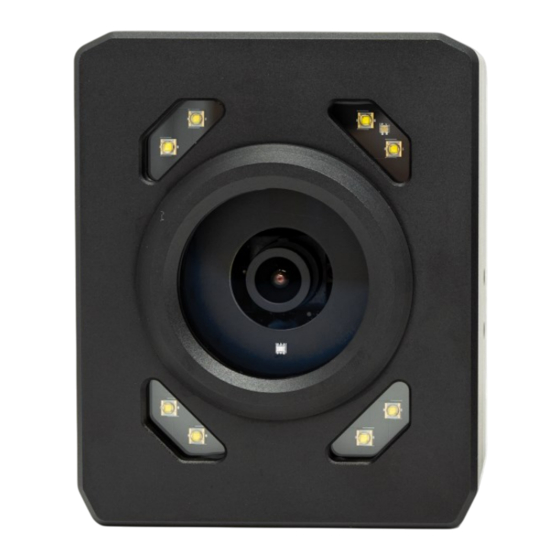
Ark Vision Systems ArkCam Basic+ Produktanleitung
Inhaltsverzeichnis
Inhaltsverzeichnis

Verwandte Anleitungen für Ark Vision Systems ArkCam Basic+

Inhaltszusammenfassung für Ark Vision Systems ArkCam Basic+
- Seite 1 Produktanleitung Product manual ArkCam Basic+ / Cylinder / Mini...
-
Seite 2: Inhaltsverzeichnis
Inhaltsverzeichnis User Guide ArkCam Smart & ArkCam Basic Installation Montage / / Software Downloads Delivery status ArkCam Auslieferungszustand / Main Menu Hauptmenü / Camera Kamera / Information Date & Time Datum & Uhrzeit / Maintenance Wartung / Network Settings Netzwerk Einstellungen / Videostream Einstellung / Stream Settings Belichtung / Exposure Gegenlicht-Highlight-Kompensation /... -
Seite 3: Montage / Installation / Software Downloads
Installation Montage / M12-Connector with screw-connection M12-Stecker mit Schraubanschluss Tightening torque 0,6 Nm / 5.3 lbf in ▪ ▪ Anzugsmoment 0,6 Nm / 5.3 lbf in Check plug for tight fit and that the plug is com- ▪ ▪ Stecker auf festen Sitz überprüfen und den Ste- pletely screwed down cker komplett verschrauben Screw the plug only at the knurl provided, do not... -
Seite 4: Auslieferungszustand / Delivery Status Arkcam
Delivery status Auslieferungszustand / ArkCam Basic+ mini / Cylinder TX / T1 ▪ Camera-IP: 192.168.0.76 ▪ Stream-Destination-IP: 192.168.0.150 ▪ Netmask: 255.255.255.0 ▪ Port: 5006 / MJPEG ▪ Port: 5004 / H264 TRX+ +V DC TRX- Rot/Red +V DC Schwarz/Black +V DC +V DC ArkCam Basic+ TX / T1 / PoE ▪... -
Seite 5: Hauptmenü / Main Menu
Configuration Konfiguration / ArkCam Basic+ Webserver Main Menu Hauptmenü / The camera web page in the browser via net- ▪ Aufruf der Kamerawebseite im Browser über ▪ work address 192.168.0.76 Netzwerkadresse 192.168.0.76 Change settings on the corresponding ▪ Einstellungen auf der entsprechenden ▪... -
Seite 6: Operating Time
Configuration Konfiguration / ArkCam Basic+ Factory setting *Werkseinstellung / Information Camera type Kamera Typ ▪ ▪ Firmware Version Firmware Version ▪ ▪ Part number & serial number Artikelnummer & Seriennummer ▪ ▪ Operating time ▪ Betriebszeit ▪ Change camera name ▪... -
Seite 7: Wartung / Maintenance
Configuration Konfiguration / ArkCam Basic+ Maintenance Factory setting Wartung / *Werkseinstellung / Firmware Update Firmware Update ▪ ▪ Upload camera settings Kameraeinstellungen hochladen ▪ ▪ Download camera settings ▪ Kameraeinstellungen herunterladen ▪ Reboot or reset camera to factory settings ▪ Neustart oder Zurücksetzen der Kamera auf ▪... -
Seite 8: Videostream Einstellung / Stream Settings
Configuration Konfiguration / ArkCam Basic+ Stream Settings Factory setting Videostream Einstellung / *Werkseinstellung / In total there are five video streams available on the Im Gesamten stehen 5 Videostreams MJPEG und camera. which can be used for MJPEG and H.264. H.264 pro Kamera zur Verfügung. - Seite 9 Configuration Konfiguration / ArkCam Basic+ Stream Settings Factory setting Videostream Einstellung / *Werkseinstellung / The settings should be made depending on the num- Die Einstellungen sollte je nach Kameraanzahl, ber of cameras, system and display medium. System und Anzeigemedium vorgenommen werden. For setting recommendations, see page 19.
-
Seite 10: Belichtung / Exposure
Configuration Konfiguration / ArkCam Basic+ Exposure Factory setting Belichtung / *Werkseinstellung / The settings should be made depending on the num- Die Einstellungen sollte je nach Kameraanzahl, Sys- ber of cameras, system and display medium. tem und Anzeigemedium vorgenommen werden. For setting recommendations, see 18 Einstellungsempfehlungen siehe... -
Seite 11: Gegenlicht-Highlight-Kompensation / Backlight-Highlight Compensation
Configuration Konfiguration / ArkCam Basic+ Factory setting *Werkseinstellung / Gegenlicht-Highlight-Kompensation / Backlight-Highlight Compensation BLC/HLC BLC/HLC Modus Modus ▪ ▪ ▪ Aus ▪ HLC (Highlight Identifikation) ▪ HLC (Highlight Identifikation) ▪ not callable in Image Sensor Mode WDR nicht im Image Sensor Mode WDR aufrufbar HLC Level (10) HLC Level (10) -
Seite 12: Farbe / Color
Configuration Konfiguration / ArkCam Basic+ Factory setting Color *Werkseinstellung / Farbe / Day/Night Switching Tag/Nacht-Umschaltung Mode ▪ Modus ▪ Auto ▪ Auto ▪ Day (color) ▪ Tag (farbe) ▪ Night (monochrom) ▪ Nacht (monochrom) ▪ Threshold (10) Schwellenwert (10) ▪ ▪... -
Seite 13: Bildeinstellung / Image Settings
Konfiguration / Configuration ArkCam Basic+ Bildeinstellung / Image Settings *Werkseinstellung / Factory setting The settings should be made depending on the num- Die Einstellungen sollte je nach Kameraanzahl, ber of cameras, system and display medium. System und Anzeigemedium vorgenommen werden. For setting recommendations, see page 18 Einstellungsempfehlungen siehe... -
Seite 14: Configuration
Configuration Konfiguration / ArkCam Basic+ Image Sensor Mode Factory setting Bildsensor Modus / *Werkseinstellung / Mode Modus Frequency Frequenz ▪ ▪ 50 Hz / 60 Hz ▪ 50 Hz / 60 Hz ▪ Mode Modus ▪ ▪ 25 / 30 FPS Normal ▪... -
Seite 15: Overlays
Configuration Konfiguration / ArkCam Basic+ Factory setting Overlays *Werkseinstellung / Video Preview Video Vorschau Live snapshot ▪ Aktueller Schnappschuss ▪ Box Overlays Box Overlays Note that the settings refer to the native came- Die Einstellungen beziehen sich auf die native ▪... - Seite 16 Configuration Konfiguration / ArkCam Basic+ continued Factory setting Overlays (fortgesetzt / *Werkseinstellung / Other Overlay Settings Andere Overlay Einstellungen Testpattern ▪ Testmuster ▪ Colorbar ▪ Farbbalken ▪ Disabled Deaktiviert ▪ ▪ Enabled ▪ Aktiviert ▪ Camera Name Kamera Name Name ▪...
-
Seite 17: Glossar
Glossar GOP: Group of Pictures- Number of pictures in H264 GOP: Group of Pictures— Anzahl Bilder in H264 nach after which a supporting picture is displayed again. der wieder ein Stützbild kommt IDR: Instantaneous Decoding Refresh-support image IDR: Instantaneous Decoding Refresh—Stützbild WDR: Wide Dynamic Range-High dynamic range WDR: Wide Dynamic Range—Hoher Dynamikbereich FPS: Frames per second-Frames per second... -
Seite 18: Empfehlung Für Bildeinstellung / Recommendation For Image Setting
Recommendation for image setting Empfehlung für Bildeinstellung /... -
Seite 19: Empfehlung Kamera Inbetriebnehmen
Empfehlung Kamera Inbetriebnehmen Konfiguration der Netzwerkkomponenten Monitor und Kameras in eigenem Kamera-Monitor-System Auslieferungszustand ArkCam Basic+ IP-Adresse: 192.168.0.76 RTP Destination IP: 192.168.0.150 RTP Port: 5004 (H264) / 5006 (MJPEG) Auslieferungszustand ArkVisionUnit 7“ IP-Adresse: 192.168.0.150 Die gewünschte Systemtopologie des Netzwerks notiert man sich am besten in einer Tabelle. Allen Kompo- nenten im Netzwerk muss jeweils eine eindeutige IP-Adresse zugeordnet werden, wobei sich alle IP-Adressen im gleichen Subnetz befinden müssen. - Seite 20 Empfehlung Kamera Inbetriebnehmen Konfiguration ArkCam Basic+ Die Netzwerkkonfiguration der Kameras erfolgt dann einzeln nacheinander über einen PC, der mit dem Switch verbunden ist. Die Netzwerkkarte des PCs wird auf die Standard Destination IP der Kamera (192.168.0.150) eingestellt. Eine Kamera nach der anderen wird dann an den Switch angeschlossen und konfiguriert. Bsp.
- Seite 21 Empfehlung Kamera Inbetriebnehmen Konfiguration ArkVisionUnit 7“ Wenn alle Kameras unterschiedlich konfiguriert sind, wird der PC vom Switch getrennt und anstelle dessen der Monitor ArkVisonUnit 7“ angeschlossen. Hier ist kein PC nötig, alle Einstellungen erfolgen direkt über das Bildschirmmenü des Monitors. In den Monitoreinstellungen muss zuerst die IP-Adresse des Monitors gemäß...
- Seite 22 Empfehlung Kamera Inbetriebnehmen PC / Laptop (Customer provision) Basic+ mini Basic+ 192.168.0.76 192.168.0.85 H.264 5004 5004 MJPEG 5006 5006 ArkCam Basic+ mini T1 ArkSwitch T1 4+1 3050009 ArkCable ArkCable ArkCable 9-60V DC ArkCable 16.5 ArkVisionUnit 7“ M12D-M M12A-F ArkCable 14.X M12X-M 9-32V DC...
-
Seite 23: Recommendation Camera Startup
Recommendation Camera Startup Configuration of the network components monitor and cameras in own camera monitor system Delivery state ArkCam Basic+ IP address: 192.168.0.76 RTP Destination IP: 192.168.0.150 RTP Port: 5004 (H264) / 5006 (MJPEG) Delivery state ArkVisionUnit 7" IP address: 192.168.0.150 It is best to note down the desired system topology of the network in a table. - Seite 24 Recommendation Camera Startup Configuration ArkCam Basic+ The network configuration of the cameras is then done one by one using a PC connected to the switch. The PC's network card is set to the camera's default destination IP (192.168.0.150). One camera at a time is then connected to the switch and configured. Ex.
- Seite 25 Recommendation Camera Startup Configuration ArkVisionUnit 7" If all cameras are configured differently, the PC is disconnected from the switch and the ArkVisonUnit 7" mo- nitor is connected instead. No PC is necessary here, all settings are made directly via the monitor's on-screen menu. In the monitor settings, the IP address of the monitor must first be set according to the table, e.g.
-
Seite 26: Rtp Stream Vlc Player / Gstreamer
Konfiguration Host PC / Configuration Host PC Set IPv4 properties in the network adapter to IPv4 Eigenschaften im Netzwerkadapter auf ▪ ▪ fixed IP 192.168.0.150 (camera default destina- feste IP 192.168.0.150 setzen (Standardzieladresse der Kamera) tion address) Disable active firewall Aktive Firewall und ▪... -
Seite 27: Vlc Player Einstellung / Settings
VLC Netzwerkcache Konfiguration Aufruf des Menüs „Werkzeuge - Einstellungen“ Dann im nächsten Fenster unten links „Alle“ Einstellungen auswählen, um in die erweiterten Einstellungen zu gelangen. Anschließend im Fenster links den Block „Eingang / Codecs“ auswählen. Im rechten Feld dann zum Block „Erweitert“ herunterscrollen und die Einstellung „Cachewert für das Netzwerk (ms)“... - Seite 28 VLC Netzwerkcache Configuration Call up menu „Tools - Preferences “ Then select "All" settings in the lower left corner of the next window to get to the advanced settings. Then select the block "Input / Codecs" in the window on the left. Then scroll down to the "Advanced"...
-
Seite 29: Gstreamer Einstellung / Settings
GStreamer GStreamer can be downloaded from the following GStreamer kann unter folgendem Link heruntergela- link. den werden. https://gstreamer.freedesktop.org/data/pkg/ https://gstreamer.freedesktop.org/data/pkg/ windows/1.16.2/gstreamer-1.0-mingw-x86_64- windows/1.16.2/gstreamer-1.0-mingw-x86_64- 1.16.2.msi 1.16.2.msi After starting the installation, the type of installation Nach dem Start der Installation, wird der Typ der In- is requested, here you select "Custom". - Seite 30 GStreamer Anschließend öffnet man über „Erweitert- Then open the variable editor via "Advanced environ- Umgebungsvariablen“ den Variableneditor. ment variables". Dort erweitert man die Variable „Path“ im Abschnitt There you extend the variable "Path" in the section „Systemvariablen“ um den Installationspfad von "System variables"...
- Seite 31 GStreamer Dazu die Variable „Path“ im Abschnitt To do this, select the "Path" variable in the "System „Systemvariablen“ auswählen und „Bearbeiten…“. variables" section and "Edit...". Hier wird der Pfad durch die Schaltfläche „Neu“ hinzu- Here the path is added by the "New" button. This gefügt.
-
Seite 32: Arkcam Viewer
ArkCam Viewer After installing GStreamer, ArkCamViewer can be Nach der Installation von GStreamer lässt sich der started via the exe. At the very first start the ArkCamViewer über die exe starten. Beim aller- Windows firewall should report. There it is im- ersten Start sollte sich die Windows-Firewall mel- portant to allow access to private and public net- den. - Seite 33 Dimensions Abmessungen / ArkCam Basic+ Mounting Montageanleitung / ArkCam Basic+ RAM-Halterung / RAM-Mount Befestigungsbügel / Mounting bracket...
-
Seite 34: Dimensions
Dimensions Maße 35,5mm 46,8mm Scope of delivery Lieferumfang ArkCam Basic+ mini T1 ArkCam Basic+ mini TX Power 9-60V DC... - Seite 35 Dimensions Version TX/X Maße / Ø 25 1 Meter Maße in / Dimensions in mm Dimensions Version T1 Maße / Ø 25 117,85 Maße in / Dimensions in mm...
-
Seite 36: Kabel & Spannungsversorgung / Cable & Power Supply
Kabel & Spannungsversorgung / Cable & Power Supply Powerkabel Farbe Cable 6.5 Cable 28.3 Farbe Cable 18.3 weiß/white CAN_H +V DC braun/brown +V DC braun/brown CAN_L GPI1 weiß/white GPI 1 grün/green +V DC GPI2 blau/blue gelb/yellow GPIO1 schwarz/black GPI 2 grau/grey GPI 3 grau/gray... - Seite 37 Ark Vision Systems GmbH & Co. KG Tel: +49 (0) 6471-5087020 7. November 2023 Limburger Str. 51 E-Mail: info@ark-vision-systems.com Rev.: 03/2023 35799 Merenberg-Allendorf Homepage: www.ark-vision-systems.com © Ark Vision Systems 2023 Germany...