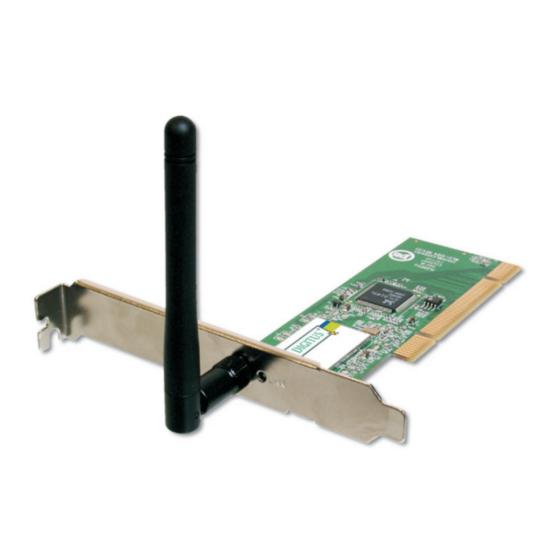
Digitus dn 7006gt Schnellstartanleitung
Wireless lan pci adapter

Verwandte Anleitungen für Digitus dn 7006gt


Inhaltszusammenfassung für Digitus dn 7006gt
- Seite 1 Enjoy connections. Live. Quick Installation Guide WIRELESS LAN PCI ADAPTER...
- Seite 2 START HERE! The installation process consist of 4 simple steps: • Install the software for the wireless network adapter. • Insert the wireless network adapter into your computer. • Let Windows complete the hardware installation. • Setup the wireless network connection. To complete these steps you need at least: •...
-
Seite 3: Installazione
INSTALLAZIONE Per installare il prodotto, è sufficiente seguire queste 4 semplici fasi: • Installare il software del modulo USB di rete wireless; • Collegare il modulo USB al computer; • Assicurarsi che Windows porti a termine in modo automatico la procedura di installazione dello hardware;... - Seite 4 BEGIN HIER De installatie bestaat uit 4 eenvoudige stappen: • Installeer de software voor de draadloze netwerk adapter. • Stop de draadloze netwerk adapter in uw computer. • Laat Windows de hardware installatie voltooien. • Maak de draadloze netwerk verbinding. Om deze installatie met succes af te kunnen ronden moet u op zijn minst beschikken over: •...
- Seite 5 INICIAR AQUI! O processo de instalação consiste de 4 passos simples: • Instale o software para o adaptador de rede sem fios. • Insira o adaptador de rede sem fios no seu computador. • O Windows finalizará a instalação do hardware. •...
- Seite 6 BEGYND HER! Installationsprocessen omfatter 4 enkle trin: • Installer softwaren til den trådløse netværksadapter. • Indsæt den trådløse netværksadapter i computeren. • Lad Windows fuldføre hardwareinstallationen. • Opsæt den trådløse netværksforbindelse. For at fuldføre disse trin, skal du bruge mindst følgende: •...
- Seite 7 Step 1 Step 1...
- Seite 8 • Insert the installation CD in the CD-ROM drive, open My Computer/CD-ROM drive and run the autorun.exe file. • Click Next to start the installation and follow the instruction on your screen. • After the setup wizard has finished remove the CD-ROM and shut down the computer. •...
- Seite 9 • Stop de installatie CD in het CD-ROM station, open Mijn Computer/CD-ROM-station en start autorun.exe • Klik op Next om de installatie te beginnen en volg de instructies op uw scherm. • Als het installatieprogramma is afgerond de CD-ROM eruit halen en de computer afsluiten. •...
- Seite 10 Step 2 Step 2 • Insert the DN-7006GT wireless adapter into a free PCI slot. • Start the computer. • Introduisez l’adaptateur DN-7006GT sans fil PCI dans une fente PCI libre. • Démarrez l’ordinateur. • Collegare Il modulo wireless PCI DN-7006GT a una porta PCI libera. •...
- Seite 11 Step 3 Step 3...
- Seite 12 • After Windows has restarted it will detect new hardware (the DN-7006GT). • Follow the Windows New Hardware Wizard and let Windows automatically search for the appropriate drivers. Note: Windows 98SE users may need the Windows 98SE CD-ROM to complete the installation.
- Seite 13 • Nach dem Neustart erkennt Windows die neue Hardwarekomponente (DN-7006GT). • Befolgen Sie die Anweisungen des Hardware-Assistenten Windows sucht automatisch nach geeigneten Treibern. Hinweis: Für Windows 98SE ist möglicherweise die Windows 98SE CD-ROM erforderlich, um die Installation abzuschließen. • Abhängig von der Windows-Version, die Sie verwenden, sehen Sie eventuell die Meldung des Microsoft Logotests.
- Seite 14 • Depois de ter iniciado, o Windows detectará novo hardware (o DN-7006GT). • Siga as instruções do Windows New Hardware Wizard [Assistente de Novo Hardware Windows] e deixe que o Windows procure automaticamente os programas controladores apropriados. Nota: Os utilizadores de Windows 98SE poderão necessitar do CD-ROM do Windows 98SE para finalizar a instalação •...
- Seite 15 Step 4a Step 4a • After installing the software, the wireless configuration utility icon will show up the icon tray. • Double click on the configuration utility icon. • Click Site survey and then click the Refresh button. • The wireless adapter will now search for the available networks in the area. •...
- Seite 16 • Una volta installato il software, nell’area di notifica della barra delle applicazioni apparirà l’icona del programma di utilità per la configurazione della rete wireless. • Fare doppio clic sull’icona. • Fare clic su “Site survey” [“Verifica sito”], quindi sul pulsante “Refresh” [“Aggiorna”]. •...
- Seite 17 • Efter at softwaren er installeret på computeren, vises ikonet for hjælpeprogrammet til konfiguration af den trådløse forbindelse i proceslinjen. • Dobbeltklik på ikonet for hjælpeprogrammet konfiguration af den trådløse forbindelse. • Klik på Site survey (Oversigt over websted) og klik derefter på knappen Refresh (Opdater). •...
- Seite 18 • Wählen Sie das Netzwerk aus, auf das Sie zugreifen möchten und klicken Sie auf Connect [Verbinden]. • Der drahtlose Adapter versucht eine Verbindung mit dem selektierten Netzwerk herzustellen. Wenn sie Verbindung erfolgreich hergestellt wurde, wechselt die Farbe des Symbols des Dienstprogramms auf grün.
- Seite 19 FINISHED FINISHED Your computer should now be able to access the wireless network. Votre ordinateur doit maintenant pouvoir accéder au réseau sans fil. Adesso sarà possibile accedere alla rete wireless dal computer in uso. Ihr Computer sollte jetzt auf das drahtlose Netzwerk zugreifen können. Uw computer kan nu gebruikmaken van het draadloze netwerk.
- Seite 20 Extremely user-friendly installation software is also supplied with digitus products so that anyone can get started simply with Digitus products. In addition to this, you can find all kinds of information about the products and their uses...