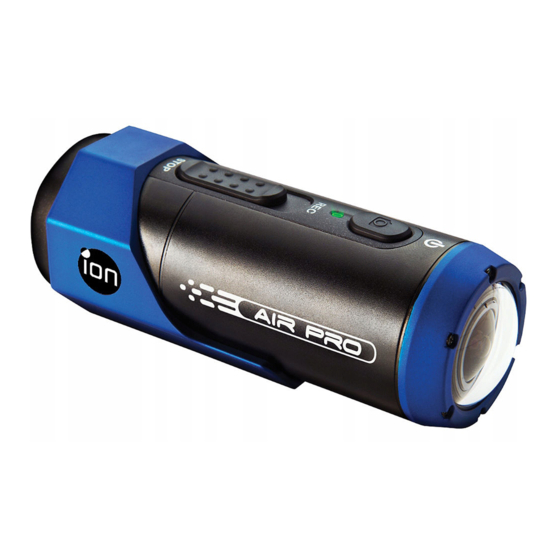
ION Air Pro Bedienungsanleitung
Vorschau ausblenden
Andere Handbücher für Air Pro:
- Kurzanleitung (21 Seiten) ,
- Kurzanleitung (50 Seiten) ,
- Kurzanleitung (29 Seiten)
Quicklinks
EN
Notes
Quick Start Guide
1. Failure to properly seal your camera can result in leaks that damage or destroy your camera. Your warranty
does not cover water damage resulting from user damage.
2. The rubber seal on the PODZ forms the waterproof barrier to protect the camera in wet and underwater
conditions. You must keep this seal clean as a single strain of hair or grain of sand can cause a leak into the
product.
3. After every use in salt water, you will need to rinse the outside of the product and the seal with non-salt water
and dry. Not doing this can cause corrosion in the product or failure in the seal, in turn, damaging the product.
2.5 Recording Video
Before starting recording, select the video resolution by switching the Video Resolution Switch
There are two methods available for starting the video record function. When starting a video recording, a short
vibration indicates recording started. The LED indicator illuminates RED throughout the recording.
1. Whether the camera power is ON or OFF, simply slide the Recording Slide Switch
to start recording.
2. When your camera is OFF and the Recording Slide Switch
Power
button to turn the camera ON and it will start recording.
Move the Recording Slide Switch
the LED indicator will illuminate GREEN to indicate the recording has stopped. The camera will then enter
Standby mode.
An additional option is to hold the Power
will vibrate two seconds and the Red LED light will turn off.
Notes
1. An additional 432x240 (w/ 1080p/720p) or 320x240 (w/ 960p) video file will be created simultaneously with the
recording of an HD/FHD video file. The smaller video file size allows for more efficient uploading of content to
social media sites and email.
2. Changing video resolution is disabled during video recording.
3. There will be around 1-2 seconds delay before the camera starts recording.
4. The various video resolution options for HD and FHD can be changed under the "Settings" selection in the ion
software.
Thank you for purchasing the ion AIR PRO HD sports video camera. The ion AIR PRO can be mounted with the Bike &
Helmet Kit or the BOARD Kit for the ultimate adventure HD recording experience.
2.6 Taking Photos
Getting to know your AIR PRO camera
1. Turn on the camera by pressing the Power
2. After the camera power has been turned on, press the Power
AIR PRO is a Professional, High Quality Digital Video Recorder that records in Full HD video by using
a flash of Green LED indicate the action was successful.
an easy slide switch
Notes
It also has the latest 5 Mega Pixel Sensor for you to take great digital photographs
Your camera supports a MicroSD card up to 32GB, which allows you to take video in 1080p with 30
1. The Still Photo function is disabled during video recording.
frames per second for about 4 Hours.
2. Change photo resolutions and shot mode (Single Shot, Burst Mode and Time Lapse) through the "Settings"
The embedded 1200mAh Li-Polymer Battery can be recharged quickly.
section on the ion software.
The Waterproof Housing lets the camera perform up to 10 meters under water.
2.7 CamLOCK Mount System
AIR PRO is about 4.58 ounces or 130g.
ion's versatile CamLOCK Mount System allows you to attach the AIR PRO camera to any type of helmet (bike,
motorcycle, ski, skydive etc.), pole, board (surf, skate, ski etc) and handlebar (bike and motorcycle).
1. Getting to Know Your Camera
Please refer to the specific mounting guides for instructions on how to install your mounts with your camera for
particular activities.
1 2
3
1. Turn the camera on or off
3. Connecting Your Camera
Power
1
2. Take single photograph
2
LED indicator
Show the camera status
3.1 Connecting Your Camera to a PC
4
Recording Slide
3
Slide to start or stop video recording
To open the ion software,
Switch
1. Inserted a MicroSD card into your camera and make sure there is at least 2MB free space.
4
Lens
High quality lens
2. Connect your camera to a PC via the USB cable included.
MicroSD card slot MicroSD card storage location.
3. Press the Power
5
4. Open the MicroSD folder and you will find the file "ion.exe".
Connect the camera to TV via
6
AV port
5. Double click the file to open
Composite cable
Once you open the software you can:
7
Mini HDMI Port
Connect the camera to TV via HDMI cable
1. Browse the files saved in the camera
5
Video Resolution
2. Change the camera setting
8
Select video resolution: FHD (Full HD) or HD.
6
7
Switch
3. Link to the ion website and cloud service
1. Connect to computer for data transfer
4. Check the firmware update
10
9
USB Port
or camera setup
8
9
Notes
2. Charge your camera
1. If you cannot find ion.exe at your MicroSD folder, you can unplug the cable from PC and turn the camera on
10
Reset button
Reset the camera
1
1
and off once onnect the PC again.
2. If you are a Mac user, visit the ion website (www.iontheaction.com) to download the software in Mac version.
Connect PODZ to the camera to
11
PODZ Socket
achieve additional function
3.2 Connecting Your Camera to a TV/HDTV
2. Using Your Camera
You can connect your camera to a TV or HDTV via the Composite RGB (included) or an HDMI cable (not
included). Once you are connected you can:
1. Take photos or videos by using your TV as a viewfinder
2.1 Charging up Your Camera
2. Playback any photo or video files saved in the camera
Charge your camera with either the USB cable or AC/DC adapter. The red LED lights up to indicate the camera
3. Delete any files saved in the camera
is charging and turns off as soon as the camera has been fully charged. It takes about 3 hours to fully charge the
4. Format the MicroSD Card
camera.
3.3 Sign up for Free ion Cloud Storage
2.2 Inserting a Memory Card
You can sign up 8GB of free Cloud storage for storing and sharing of video and photo content. Enter
Insert a MicroSD card (not included) before using your camera. Assure that the camera power is turned OFF
www.iontheaction.com/ioncloud to sign up.
before inserting the card to the slot.
4. Troubleshooting
Notes
1. There is only one correct direction to insert the MicroSD card into the slot. Do not force the card into the card
slot as it may damage both the camera and the MicroSD card.
Problems
2. A new MicroSD card should be formatted before using. For more information, please see section 3.1 and 3.2
1. LED flashes and camera turns off
2.3 Set up Date and Time
2. Cannot turn on the iON camera
Connect your camera to a computer and run the ion software from the MicroSD card folder. You can set date and
Red LED flashes during recording
time on the camera through the settings page. Please see section 3.1 to open ion software
Cannot take photos or video
2.4 Sealing Your Camera
(Green LED flashes)
The Waterproof Housing lets the camera perform up to 10 meters or 30 feet
Cannot take photos or video (Green
under water. You must seal the camera with PODZ in order to protect the
and Red LED flashes alternatively)
camera when using it in wet or moist conditions.
To secure the PODZ
1. Attach the PODZ to the back of the camera and rotate clockwise until
Cannot find removable disk after
two dots are aligned
connecting the camera to the
2. Slide the latch on the PODZ to lock it.
computer.
FR
Remarques
Guide de démarrage
1. Le non-respect de cette étape peut entraîner des infiltrations dangereuses pour votre caméra. La garantie ne
couvre pas les dégâts des eaux dus à une négligence.
2. Le joint de caoutchouc du PODZ assure l'étanchéité qui protège votre caméra sous l'eau. Assurez-vous que
celui-ci reste propre et libre d'obstructions telles que des grains de sable ou même un cheveu.
rapide
3. Après utilisation dans l'eau salée, il est nécessaire de rincer l'extérieur et le joint à l'eau claire et laisser sécher.
Le sel peut entraîner la corrosion du produit ou endommager le joint, compromettant son intégrité.
2.5 Enregistrer une vidéo
Avant de commencer à enregistrer, choisissez la résolution à l'aide du bouton de sélection rapide.
Deux méthodes sont disponibles pour lancer l'enregistrement. Une courte vibration indiquera le commencement
de l'enregistrement. Le voyant s'allume en rouge pendant toute la durée de l'enregistrement.
1. Que la caméra soit allumée ou éteinte, faire basculer le Bouton coulissant d'enregistrement
à REC permet de lancer la caméra.
2. Si la caméra est éteinte, faites glisser le Bouton coulissant d'enregistrement
sur le Bouton ON/OFF
coulissant d'enregistrement
vibration et le voyant s'allumera en VERT pour indiquer que l'enregistrement est arrêté. La caméra se mettra
en mode Veille. Par ailleurs, vous pouvez maintenir le Bouton ON/OFF
l'enregistrement et éteindre la caméra.
La caméra vibrera pendant 2 secondes et le voyant vert s'éteindra.
Remarques
1. Un fichier vidéo additionnel de 432x240 (w/ 1080p/720p) ou de 320x240 (w/ 960p) sera créé lors de
l'enregistrement d'une vidéo HD/FHD. Plus la taille de votre vidéo est réduite, plus elle vous permet de la
partager plus aisément ou de l'envoyer par email.
2. Il n'est pas possible de modifier la résolution en cours d'enregistrement.
3. L'enregistrement sera lancé après un délai de 1 à 2 secondes.
4. Les options de résolution disponibles pour l'enregistrement HD ou FHD peuvent être sélectionnées dans la
"Configuration" du logiciel ion.
Merci d'avoir acheté la caméra HD extrême ion AIR PRO.
AIR PRO de ion peut être contenue dans le Kit Vélo & Casque ou le Kit PLANCHE pour vous permettre d'enregistrer
2.6 Prise de photos
vos excursions en HD.
1. Allumez la caméra à l'aide du Bouton ON/OFF
Connaître votre caméra AIR PRO
2. Une fois la caméra allumée, pressez simplement le Bouton ON/OFF
vibration se fera sentir et le voyant clignotera en vert pour indiquer la prise.
AIR PRO est une caméra vidéo de type professionnel, de haute qualité, qui enregistre en Full
Remarques
HD d'une simple pression sur un bouton coulissant.
1. Il n'est pas possible de prendre des photos en cours d'enregistrement.
Elle est équipée d'un capteur 5 Méga Pixels de dernière génération pour prendre des images
2. Modifiez les options de résolution photo ou de mode de prise (Prise unique, rafale, retardateur) via la
exceptionnelles.
"Configuration" du logiciel ion.
Votre caméra prend en charge les cartes MicroSD d'une capacité maximum de 32Go vous permettant
d'enregistrer des vidéos en qualité 1080p à 30 images par seconde pendant environ 4 heures.
2.7 Système de de verrouillage CamLOCK
La batterie Li-Polymère intégrée 1200 Mah se recharge rapidement.
Le boîtier résistant à l'eau permet une immersion à une profondeur de 10 mètres.
Le système de verrouillage flexible CamLOCK permet d'attacher la caméra AIR PRO à tout type de casque (vélo,
AIR PRO pèse environ 4,58 onces, ou 130g.
moto, ski, saut en parachute, etc.), bâton, planche (surf, skate, ski, etc.) et guidon (vélo et moto).
Voyez les instructions spécifiques pour plus d'informations sur comment installer la caméra selon le support.
1. Connaître votre caméra
3. Connecter la caméra
1 2
3
3.1 Connecter la caméra à un PC
1. Allumer ou éteindre la caméra
Bouton ON/OFF
1
2. Prendre une photo
Pour le logiciel ion.
2
Voyant DEL
Affiche l'état de la caméra
1. Insérez une carte MicroSD dans votre caméra et assurez-vous de disposer d'au moins 2 Mo d'espace libre.
4
Bouton coulissant
Faire glisser pour commencer / mettre
2. Connectez la caméra à l'ordinateur avec le câble USB fourni.
3
d'enregistrement
en pause l'enregistrement.
3. Appuyez sur le Bouton ON/OFF
4. Ouvrez le dossier de la carte MicroSD et recherchez le fichier "ion.exe".
4
Lentille
Lentille haute sensibilité
5. Double-cliquez pour lancer le logiciel.
Emplacement pour insertion d'une carte MicroSD.
5
Fente microSD
Une fois le logiciel ouvert, vous pouvez :
Connectez la caméra à une TV avec
1. parcourir les fichiers présents sur la caméra
6
Port AV
le câble composite.
2. Modifier la configuration de la caméra
7
Port Mini HDMI Connectez la caméra à une TV avec le câble HDMI.
3. Effectuer une connexion avec le site ion et les services de cloud.
5
4. Vérifier les mises à jour du logiciel.
Sélecteur de
8
Pour basculer entre : FHD (Full HD) ou HD.
6
7
Remarques
résolution rapide
1. Pour connexion de transfert de données
1. Si vous ne trouvez pas le fichier ion.exe dans le dossier MicroSD, débranchez la caméra, éteignez-la puis
10
9
Port USB
ou configuration
8
9
reconnectez-la à l'ordinateur.
2. Pour recharger la caméra.
2. Si vous êtes un utilisateur Mac, rendez-vous sur le site ion (www.iontheaction.com) pour télécharger la version
Bouton de
Mac du logiciel.
10
Pour réinitialiser la caméra
1
1
réinitialisation
3.2 Connecter la caméra à une TV/TV HD
Branchez le PODZ à la caméra pour
11
Prise PODZ
obtenir plus de fonctionnalités
Vous pouvez connecter votre TV ou TV HD via le câble Composite RGB (inclu) ou un câble HDMI (non inclu).
Une fois connecté, vous pouvez :
2. Utiliser votre caméra
1. Prendre des photos ou vidéos en utilisant la TV comme viseur
2. Lire les fichiers photo ou vidéo présents sur la caméra
2.1 Charger votre caméra
3. Supprimer tout fichier présent sur la caméra
4. Formater la carte MicroSD.
Connectez la caméra soit avec un câble USB ou l'adaptateur CA/CC. Le voyant rouge indique la charge et
s'éteint lorsque la batterie est pleine. Le processus de charge prend environ 3 heures.
3.3 Inscription pour stockage en ligne ion
2.2 Insérer la carte mémoire
Vous pouvez vous enregistrer pour disposer de 8 Go en ligne pour stocker ou partager vos créations
gratuitement. Rendez-vous sur www.iontheaction.com/ioncloud pour vous inscrire.
Veuillez insérer une carte MicroSD (non fournie) avant d'utiliser l'appareil photo. Assurez-vous que la caméra est
éteinte avant d'insérer la carte SD.
4. Dépannage
Remarques
1. La carte ne peut être insérée que dans un sens dans la fente pour MicroSD.En cas de résistance, ne
forcez pas, cela pourrait endommager la carte MicroSD ou la caméra.
Problèmes
2. Une carte neuve doit être formatée avant utilisation. Pour plus d'informations, reportez-vous aux
sections 3.1 et 3.2
1. Le voyant clignote et la caméra s'éteint
2. Impossible d'allumer la caméra ION
2.3 Définir la date et l'heure
Le voyant clignote en rouge durant
Connectez la caméra à un ordinateur et lancez le logiciel ion depuis la carte MicroSD. Vous pouvez définir la date
l'enregistrement
et l'heure via la page de configuration. Reportez-vous à la section 3.1 pour plus d'informations sur le logiciel ion.
Impossible de prendre une photo ou vidéo
(le voyant clignote en vert).
2.4 Assurer l'étanchéité de votre caméra
Impossible de prendre une photo ou
Le boîtier étanche permet d'immerger la caméra à une profondeur de 10
vidéo (le voyant clignote en vert et
mètres, ou 30 pieds maximum. Vous devez sceller la caméra à l'aide du
rouge).
PODZ avant utilisation dans des environnements humides.
Pour fixer le PODZ
Mémoire non détectée après branchement
1. Attachez le PODZ à l'arrière de la caméra et faites-le pivoter dans le
à un PC.
sens des aiguilles d'une montre pour aligner les deux points.
2. Faites glisser le loquet du PODZ pour le verrouiller.
5. Specification
Sensor
5 Mega pixel CMOS sensor
Lens
170º ultra wide angle field of view
Focus range
0.5m - ∞
1080p: 1920x1080 pixels (16:9), 30 fps
960P*: 1280x960 pixels (4:3), 30 fps
720p: 1280x720 pixels (16:9), 60 fps
Video
720p *: 1280x720 pixels (16:9), 30 fps
Format: H.264 compression, saved as MPEG4 (.mp4) file
from STOP to REC
Dual video files for easy sharing
Resolution: 5 Mega Pixel in JPEG format
is at REC location, press and hold the
Photo
Capture Modes: Single, Burst-shot*, Time lapse*
from REC to STOP to stop recording. The camera will vibrate and
Built-in high quality microphone
Audio
AAC Compression, Automatic Gain Control
button to stop the recording and turn the camera off. The camera
MicroSD/MicroSDHC with minimum Class 6 up to 32GB (not included)
Storage
Average Recording Times: about 4 hours (using 32GB mSD card in 1080p30/720p60)
USB2.0 (for data connection and battery charging)
Connection
HDMI
AV / Composite
Build-in 1200 mAH Rechargeable Li-Polymer Battery
Power
Battery Life: Approx. 2.5 hrs / 1 hr (w/ WiFi)
High quality Aluminum barrel and rubberized finishing
Housing
Depth up to 30 feet / 10 meters
Dimension
40 x 40 x 108 mm
button.
Weight
~130g or 4.58oz
button to take a photo. A short vibration and
* Settings can be changed through ion software
6. System Requirements
Operating system
Windows® 7/XP SP3 /Vista and Mac 10.4.11 or above
CPU
Pentium III or above
RAM
At least 64MB
Interface
USB port
CD
4x speed CD ROM or above
IMPORTANT
• Keep the lens clean. Dirt and fingerprints will affect the quality of the picture.
• Close the PODZ properly for best water sealing. Do not open it under water.
• Rinse the camera with clean water after used and keep it dry for storage.
• You can refer to the detail operation instruction at the user manual
button to turn the camera.
TRADEMARK INFORMATION
© 2012 World Wide Licenses Limited.
® The ion logo is a registered trademark of World Wide Licenses Limited.
CamLOCK, PODZ, Shoot/Share and AIR PRO and their respective logos are trademarks or registered
trademarks of World Wide Licenses Limited in the United States and other countries. Copyright © 2012. All
Rights Reserved.
FCC Statement
Caution Statement
"Modifications not approved by the party responsible for compliance could void the user's authority to
operate the equipment."
Instruction Statement
NOTE: This equipment has been tested and found to comply with the limits for a Class B digital
device, pursuant to Part 15 of the FCC Rules. These limits are designed to provide reasonable
protection against harmful interference in a residential installation. This equipment generates, uses
and can radiate radio frequency energy and, if not installed and used in accordance with the
instructions, may cause harmful interference to radio or television reception, which can be determined
by turning the equipment off and on, the user is encouraged to try to correct the interference by one or
more of the following measures:
•
Reorient or relocate the receiving antenna.
•
Increase the separation between the equipment and receiver.
•
Connect the equipment into an outlet on a circuit different from that to which the receiver is
connected.
•
Consult the dealer or an experienced radio/ TV technician for help.
WARNING: THE MANUFACTURER IS NOT RESPONSIBLE FOR ANY RADIO OR TV
INTERFERENCE CAUSED BY UNAUTHORIZED MODIFICATIONS TO THE DEVICE. ANY SUCH
MODIFICATIONS COULD VOID THE USER'S AUTHORITY TO OPERATE THE EQUIPMENT.DE
Causes
Solutions
L'EQUIPEMENT.
Battery is depleted
Recharge the camera
Low battery
Recharge the camera
Replace with a memory card with
Memory full
space available for contents
For EU only
1. MicroSD card is not inserted
1. Insert a SD card
2. MicroSD card has not been
2. Format the MicroSD card at PC
Questions?
If you still have questions
formatted properly.
Need Some Help?
visit our website:
This manual should help you
www.iontheaction.com
1. Make sure all cable connections are
understand your new product.
Connection failure.
secured and restart the computer if necessary.
2. Try a different USB port.
5. Caractéristiques
Capteur
Capteur CMOS 5 Méga pixels
Lentille
170º angle ultra-large
Distance de focale
0.5m - ∞
1080p : 1920x1080 pixels (16:9), 30 ips
960P* : 1280x960 pixels (4:3), 30 ips
720p : 1280x720 pixels (16:9), 60 ips
Vidéo
720P : 1280x720 pixels (16:9), 30 ips
Format : Compression H.264 enregistré au format MPEG4 (.mp4)
de STOP
Fichiers vidéo en deux tailles pour partage facile
Résolution : 5 Méga Pixel au format JPEG
sur REC, puis appuyez
Photos
pour allumer la caméra. L'enregistrement commence.Faites glisser le Bouton
Modes de capture : Unique, Rafale*, Retardateur*
de REC à STOP pour arrêter l'enregistrement. La
caméra émettra une
Microphone haute qualité intégré
Audio
Compression AAC, contrôle de gain auto
appuyé pour arrêter
MicroSD/MicroSDHC de Classe 6 et jusqu'à 32Go (non inclue)
Stockage
Temps d'enregistrement moyen : environ 4 heures (carte mSD de 32 Go en 1080p30/720p60)
USB2.0 (pour connexion de données et recharge)
connexion
HDMI
A/V Composite
Batterie Rechargeable Li Polymère 1200 mAH
Alimentation
Durée de fonctionnement sur batterie : Environ 2,5 h / 1 hr (avec WiFi)
Aluminium haute qualité et surfaces de caoutchouc
Boîtier
Profondeur de 10 mètres ou 30 pieds maximum
Dimensions
40 x 40 x 108 mm
.
Poids
~130g ou 4,58 oz
pour prendre une photo. Une courte
* Les paramètres peuvent être modifiés via le logiciel ion.
6. Requis système
Systèmes d'exploitation
Windows® 7/XP SP3 /Vista and Mac 10.4.11 ou plus récent
PROCESSEUR
Pentium III ou plus récent
RAM
Au moins 64MB
Interface
Port USB
CD
Lecteur CD-ROM 4x ou plus rapide
IMPORTANT
• Gardez la lentille propre. La saleté ou les traces de doigts peuvent affecter la qualité de l'image.
• Scellez le PODZ correctement pour assurer l'étanchéité. Ne pas ouvrir sous l'eau.
• Rincez la caméra à l'eau claire après utilisation et conserver dans un endroit sec.
pour allumer la caméra.
• Reportez-vous au manuel d'utilisation pour plus d'informations sur l'utilisation du produit.
INFORMATIONS LEGALES
© 2012 World Wide Licenses Limited.
® Le logo ion est une marque déposée de World Wide Licenses Limited.
CamLOCK, PODZ, Shoot/Share et AIR PRO ainsi que leurs logos respectifs sont des marques ou
marques déposées de World Wide Licenses Limited aux États-Unis et autres pays. Copyright © 2012.
Tous droits réservés.
Déclaration FCC
Avertissement
"Toute modification effectuée sans l'approbation du fabricant de l'équipement pourrait annuler son autorité sur le
bon fonctionnement de cet équipement."
Instructions
REMARQUE : Cet équipement à été testé et est conforme aux limites d'un appareil de Classe B, selon l'article 15
des Règles FCC. Ces limites ont étés mises en place pour offrir une protection raisonnable contre les interférences
dans un complexe résidentiel. Si cet équipement crée des interférences pour la réception radio ou télévisuelle, ce
qui peut être constaté en l'allumant et en l'éteignant, alors il vous est conseillé d'y remédier d'une des manières
suivantes :
• Réorientez ou déplacez l'antenne réceptrice.
• Augmentez la distance entre l'équipement et le récepteur.
• Connectez l'équipement à une prise ou circuit différent de celui du récepteur.
• Prenez conseil auprès du revendeur ou d'un technicien qualifié pour obtenir de l'aide.
AVERTISSEMENT : LE FABRICANT NE PEUT EN AUCUN CAS ETRE TENU POUR RESPONSABLE DES
INTERFERENCES CAUSEES PAR UNE MODIFICATION NON AUTORISEE DE L'APPAREIL TOUTE
MODIFICATION POURRAIT REVOQUER LE DROIT DE L'UTILISATEUR SUR L'UTILISATION DE
Causes
Solutions
L'EQUIPEMENT.
La batterie est vide
Rechargez la caméra
Batterie faible
Rechargez la caméra
Insérez une carte mémoire
La mémoire est pleine.
possédant de l'espace libre
Pour UE uniquement
1. La carte MicroSD n'est pas été
1. Insérer une carte SD
insérée correctement.
2. Formatez la carte microSD à
2. La carte MicroSD n'est pas été
Des questions ?
Si vous avez d'autres questions
formatée correctement.
l'aide d'un PC.
Besoin d'aide ?
visiter notre site web :
1. Assurez-vous que les câbles sont
Ce guide vous aidera à comprendre
www.iontheaction.com
correctement insérés et redémarrez
votre nouveau produit
Échec de connexion.
l'ordinateur si nécessaire.
2. Essayez un port USB différent
Quick Start Guide
Kurzanleitung
Danke dass sie sich für die ion AIR PRO HD Sport Video Kamera entschieden haben Die ion AIR PRO kann mittels des Bike
& Helm Kits oder des BOARD Kit angebracht werden und führt somit zum ultimativen Abenteuer HD Aufnahme Erlebnis .
Getting to know your AIR PRO camera
AIR PRO ist ein Professionelle, Hoch Qualitativer Digitaler Video Rekorder der FULL HD Videos nur mittels
einfacher Bedienung eines Schiebeschalter aufzeichnet.
Ausgestattet mit dem jüngsten 5 Mega Pixel Sensor um grossartige Digitale Fotos zu schiessen.
Ihre Kamera unterstützt eine MicroSD Karte (nicht im Lieferumfang enthalten) mit einer Speicherkapazität von bis
zu 32GB, und ermöglicht damit Videos in HD Qualität 1080p mit 30 frames pro Sekunde für etwa 4 Stunden
aufzuzeichnen.
Die integrierte 1200mAh Li-Polymer Batterie kann schnell aufgeladen werden
Das Wasserdichte Gehäuse Waterproof Housing ermöglicht Ihnen Aufnahmen bis zu 10m unter Wasser
durchzuführenAIR PRO wiegt weniger als 4.58Unzen respektive 130g.
1. Lernen Sie Ihre Air Pro Plus kennen
1 2
3
1. Schalten Sie die Kamera Ein oder Aus
Power
1
2. Machen Sie Einzelfotos
2
LED indicator
Zeigt den Status der Kamera an
4
Recording Slide
Durch Schieben starten oder stoppen Sie die
3
Switch
Videoaufnahme
4
Lens
Hoch Qualitative Linse
5
MicroSD card slot MicroSD Karten Schlitz
Verbinden Sie die Kameramit einem
6
AV port
TV-Gerät über das Composite Kabel
Mini HDMI Port Verbinden Sie die Kamera mit einem TV-Gerät
5
7
mittels HDMI Kabel
6
Video Resolution
8
Auswahl der Video-Aufläsung: FHD (Full HD) or HD.
Switch
8
1. Verbindungsanschluss zum Computer für Daten
9
USB Port
Transfer oder Kamera Einstellung
2. Aufladung der Kamera Batterie
1
1
10
Reset button
Rücksetzen der Kamera
Verbinden Sie den oder die PODZ mit der Kamera
11
PODZ Socket
um erweiterte Funktionalitäten zu erhalten
2. Verwendung der ion AIR PLUS
2.1 Laden der Kamera
Laden Sie die Kamera entweder mittels des mitgelieferten USB Kabels an ihrem PC oder Mac oder mittels des mitgelieferten
Ladegerätes und des mitgelieferten USB Kabels. Die rote LED Anzeigelampe leuchtet während des Ladevorganges und
erlischt sobald die Kamera zur Gänze geladen ist. Es dauert ca. 3 Stundne bis die Kamera vollständig aufgeladen ist.
2.2 Einsetzen der Speicher Karte
Setzen sie die MicroSD Karte (nicht im Lieferumfang enthalten) in den dafür vorgesehen
1. Es gibt nur eine korrekte Einsteckrichtung für die MicroSD Karte in den dafür vorgesehenen Schlitz. Üben Sie keinen Kraft
aus um die Karte in den dafür vorgesehen Schlitz zu drücken, dass könnte zur Zerstörung der Karte oder der Kamera führen.
2. Eine neue MicroSD Karte sollte for der Verwendung in der Kamera formattiert warden. Für weitere Anweisungen lesen Sie
bitte Kapitel 3.1 und 3.2.
2.3 Einstellung des Datums und der Zeit
Verbinden Sie die Kamera zu einem Computer und starten sie die ion Software des MicroSD Ordners. Nun können Sie die
Zeit und das Datum der Kamera durch die Einstellungsseite des Programms einstellen. Für weitere Anweisungen bitte Absatz
3.1 weiterlesen (Aufrufen der ion Software)
2.4 Verschließen der Kamera
Das Gehäuse it wasserdicht bis zu 10m. Sie müssen die Kamera verschließen und
mit dem PODZ abdichten um die Kamera in nasser oder feuchter Umgebung zu
Like Us:
schützen.
www.facebook.com/iontheaction
Tweet Us:
Den PODZ verwenden
www.twitter.com/iontheaction
1. Setzen Sie den PODZ an der Rückseite der Kamera auf und drehen Sie
diesen inm Umhrzeigersinn, bis die beiden Punkte sich decken.
2. Verriegeln Sie den Verschluß PODZ
Guida Rapida
Grazie per aver acquistato la ION Air PRO Videocamera per lo Sport in alta risoluzione. La ION Air PRO può essere
montata su una bicicletta, un casco o su una tavola da surf in modo da filmare la tua avventura in alta risoluzione.
Conoscere la tua AIR PRO camera
AIR PRO è Professionale, ha un'alta qualità di registrazione video in Full HD ed è semplice da utilizzare.
Ha un sensore da 5 Mega Pixel di ultima generazione che consente di scattare fotografie di ottima
risoluzione e qualità.
Compatibile con una MicroSD card fino a 32GB che consente di acquisire video in alta risoluzione fino ad
un massimo di 4 ore.
E' dotata di una batteria interna da 1200mAh Li-Polimero che può essere ricaricata rapidamente.
E' impermiabile e può essere utilizzata fino a 10 metri sotto acqua.
AIR PRO Camera è molto leggera, pesa solo 130g
1. Capire la tua AIR PRO Camera
1 2
3
1. Accensione o spegnimento AIR Pro Camera
1
Interruttore
2. Scatto singola fotografia
Indicatore LED
Mostra lo stato della Air PRO Camera
2
Interruttore
Avvia o sospende la registrazione video
4
3
Registrazione
Lente
4
Lente di alta qualità
5
Alloggio MicroSD Alloggio dove inserire la MicroSD
6
Porta AV
Ingresso per collegare la Camera alla TV
7
Porta Mini HDMI Ingresso per collegare la Camera alla TV via HDMI.
5
Interruttore
Interruttore per selezionare la risoluzione
8
6
del video: FHD (Full HD) or HD.
Risoluzione Video
1. Ingresso per connettere la Camera al PC o
8
9
Porta USB
per scaricare aggiornamenti
2. Ingresso per caricare la batteria della Camera
Bottone per
1
1
10
Interruttore per resettare la Camera
Reset
Alloggio interno alla Camera per funzioni aggiuntive
11
Alloggio PODZ
(Wi-Fi oppure batteria con maggiore capacità)
2. Usare la tua AIR PRO Camera
2.1 Caricare la batteria della tua ION AIR PRO
La carica può avvenire attraverso un cavo USB collegato ad un PC oppure con l'alimentare AC/DC. Quando il
LED è rosso significa che la Camera è sotto carica e quando la batteria è completamente carica il LED si
spegnerà. La carica complete richiede circa 3 ore.
2.2 Inserimento della MicroSD
Inserire una memoria MicroSD (non inclusa nella confezione) prima di usare la AIR PRO Camera. Assicurarsi che
la Camera sia spenta prima di inserire la MicroSD nell'apposito alloggio.
Note
1. La MicroSD può essere inserita in una sola direzione. Non forzare la MicroSD all'interno dell'apposito
alloggio perchè causerebbe danni alla Camera ed alla stessa scheda di memoria.
2. Una nuova MicroSD dovrebbe essere formattata prima di essere usata. Per maggiori indicazioni
vedi I punti 3.1 e 3.2.
2.3 Inserimento Ora e Data
Connetti la tua AIR PRO Camera al PC, regola la data e l'orario sulla fotocamera seguendo le istruzioni alla
sessione 3.1 presente sulla ION software.
2.4 Sigillare la tua ION AIR Pro
La ION AIR Pro è una fotocamera impermiabile e può essere utilizzata fino a
Suivez nous :
10 metri sott'acqua.Al fine di poter utilizzare la fotocamera in condizioni di
www.facebook.com/iontheaction
umidita o sotto acqua si deve assicurare una perfetta chiusura del vano PODZ.
Twittez nous :
Chiusura dela vano PODZ
www.twitter.com/iontheaction
1. Avvicinare la PODZ alla fotocamera e ruotare in senso orario fino a
quando i due punti si allineano (vedi foto alla destra)
2. Spostare la chiusura verso il basso(vedi punto 2 della foto a destra)
DE
5. Specification
1. Das unsachgemäße verschließen der Kamera kann zu einem Leck führen, welches die Kamera in ihrer Funktion
beeinträchtigt oder zerstört. Die Garantie und Gewährleistung schließt einen Schaden durch Wasser aufgrund
unsachgemäßen Verschlusses der Kamera aus.
2. Der Gummidichtung des PODZ bestimmt die Wasserdichtigkeit in nasser oder feuchter Umgebung. Die Dichtung
muß stets sauber und frei von einzelnen Haarsträhnen oder frei von einzelnen oder mehreren Sandkörner sein,
ansonsten kann dies zur Undichtigkeit des Produkts führen.
3. Nach jeder Benutzung im oder mit Salzwasser, muss das Produkt an der Außenseite mit nicht-Salzhaltigem Wasser
abgespült und abgetrocknet werden. Im Falle daß diese Maßnahmen nicht getroffen werden kann dies zu einer
Korrosion des Produktes oder einer eingeschränkten Funktionalität der Dichtung oder des Drehmechanismus der
Dichtung führen, die das Produkt zerstören kann.
2.5 Video-Aufzeichnung
Bevor Sie mit der Aufnahme beginnen, wählen Sie die gewünschte Video-Auflösung mittels des Video-Auflösung Schalters an
der Rückseite der Kamera.
Es gibt zwei Möglichkeiten um die Video-Aufnahme Funktion zu starten. Wenn die Video-Aufnahme gestartet wird fühlen Sie
eine kurze Vibration der Kamera. Zusätzlich leuchtet während der gesametn Aufnahme die LED Aufnahmelampe in ROT
1. Unabhängig ob die Kamera EIN – oder AUS-geschalten ist, durch einfaches Schieben des Aufnahme Schiebe Schalters
von STOP in Richtung REC starten Sie die Aufnahme
2. Falls sich Ihre Kamera auf der Stufe OFF befindent und der Aufnahme – Schiebe Schalter
in Richtung REC weist,
drücken und halten Sie die EIN/AUS
Taste um die Kamera EIN-zuschalten und mit der Aufnahme zu beginnen. Um
die Aufnahme zu stoppen schieben Sie den Aufnahme Schiebe Schalter
von Richtung REC in Richtung. Die
Kamera wird vibrieren und die LED Kontroll-Lampe wird GRÜN aufleuchten um anzuzeigen, dass die Aufnahme gestoppt
wurde. Die Kamera setzt sich in den Standby Modus.
Eine zusätzliche Möglichkeit, die Kamera abzuschalten ist, ist die EIN/AUS
zu drücken. Zusätzlich wird die Kamera
zwei Sekunden vibrieren und die GRÜNE LED Kontroll-Lampe verlischt.
1. Eine zusätzliche 432x240 (w/ 1080p/720p) or 320x240 (w/ 960p) video file Video File wird Simultan zur HD/FHD Video
Aufnahme erzeugt. Das kleinere video File ermöglicht es Ihnen ein effizientes Hochladen Ihres Inhaltes in Social Media
oder E-Mails zu ermöglichen.
2. Das Ändern der Video Auflüsung sit während der Video-Aufzeichnung unterbunden..
3. Nach 1-2 Sekunden Verzögerung beginnt die Kamer mit der Aufnahme
4. Die unterschiedlichen Video-Auflösungs Optionen für HD und FHD kann mittels der ion software unter der Rubrik "Settings"
ausgewählt werden
2.6 Fotos
* Einstellungen können über die ion Software geändert werden
1. Schalten Sie die Kamera durch drücken der Ein/Aus
Taste ein.
2. Nachdem die Kamera eingeschalten ist, drücken sie die Ein/Aus
Taste um ein Foto zu schiessen. Eine kurze Vibration
6. System Voraussetzungen
und das kurze Aufleuchten der grünen LED Anzeigelampe zeigt an, dass die Vorgang erfolgreich abgeschlossen wurde.
Hinweise
1.Die Foto-Aufnahme ist während der Video-Aufzeichnung inaktiv.
2 Die Auflösung und der Aufnahmemodus (Single Shot, Burst Mode und Time Lapse) können mittels der ion software unter
der Rubrik "Settings" geändert werden.
2.7 CamLOCK Befestigungs-System
3. Verbinden Ihrer Kamera
3.1 Verbinden Sie Ihre Kamera mit einem PC
1. Fügen Sie die MicroSD Karte in den entsprechenden Speicherkarten-Schlitz Ihrer Kamera ein, und stellen Sie sicher dass
auf der Karte mindestens 2MB freier Speicherplatz vorhanden ist.
2. Verbinden Sie Ihre Kamera mit dem PC unter Verwendung des mitgelieferten USB Kabels.
3. Drücken Sie die Ein/Aus
Taste um die Kamera einzuschalten
4. Rufen Sie den MicroSD Ordner auf und suchen Sie die Datei "ion.exe".
7
5. Doppelklick auf die Datei "ion.exe" um das Program zu starten
10
9
1. Die Dateien die auf der Kamera gespeichert wurden durchsuchen
2. Die Kamera-Einstellungen ändern
3. Den Internet-Link zur ion-Homepage und dem Cloud Service nutzen
4. Den Firmware-Status der Kamera überprüfen
Notes
1. Sollten Sie die Datei ion.exe nicht in dem MicroSD Ordner finden, Trennen Sie das Kabel vom PC und schalten Sie Ihre
Kamera nochmals Ein und Aus und Verbinden Sie diese wieder mit dem PC..
2. Sollten Sie ein Mac User sein, besuchen Sie bitte die ion Homepage (www.iontheaction.com) und laden Sie sich die jüngste
Version der Software
3.2 Verbinden Sie Ihre Kamera mit einen TV- oder HDTV-Gerät
Sie können Ihre Kamera mit einem TV -or HDTV via the Composite RGB (included) or an HDMI cable (not included). Once you
are connected you can:
1. Schießen Sie Fotos oder Videos indem Sie ihr TV-Gerät als Sucher verwenden
2. Spielen Sie sämtliche Fotos oder Videos die auf der Kamera gespeichert sind einfach ab
3. Löschen oder Speichern Sie ihre Dateien/Files der Kamera
4. Formatieren Sie ihre MicroSD Karte
3.3 Registrieren Sie sich KOSTENLOS für ion Cloud
Sie können sich kostenlose für 8GB freien Cloud Speicher registrieren um Ihre Videos und Fotos zu speichern oder mit ihren
Freunden zu teilen. Einfach unter www.iontheaction.com/ioncloud registrieren und 8GB kostenlosen Datenspeicher erhalten.
4. Fehlerbehebung
Fehler
Grund
Lösung
1. LED Kontroll-Lampe blinkt und Kamera
Battery is entladen
Kamera aufladen
schaltet sich aus.
2. Die iON Kamera läßt nicht einschalten
Rot LED Lampe blinkt während des Aufnehmens Batterie Ladewert ist niedrig
Kamera aufladen
Es ist nicht möglich Fotos zu schiessen oder
Memory Karte ersetzen mit einer Memory
Speicherkarte ist voll
Videos aufzunehmen (Grüne LED blinks)
Kart emit genügend Speicherplatz
Es ist nich tmöglich Fotos zu schiessen oder
1. Insert a SD card
Videos aufzunehmen (Grüne und Rote LED
2. MicroSD Karte auf dem PC formatieren
blinkt abwechselnd)
1Stellen Sie sicher, dass sämtliche Kabel sicher und
Die zu wechselnde / removable Disk kann
korrekt mit dem PC verbunden sind und starten sie den
Verbindungsfehler
nach Verbindung der Kamera mit dem PC
PC gegebenenfalls neu
nicht gefunden werden
2. Versuchen Sie die Kamera an einem anderen USB
Anschluss Ihres PCs anzuschliessen.
IT
Note
5. Specifiche Tecniche
1. Una chiusura impefetta può causare danni alla fotocamera. La garanzia non copre questi danni provocati da una
scarsa attenzione dell'utilizzatore.
Sensore
2. La guarnizione di gomma inserita sul vano PODZ deve essere mantenuta sempre pulita, ogni residuo deve essere
Obiettivo
rimosso. Una scarsa pulizia di questa guarnizione può compromettere la tenuta stagno del vano PODZ.
3. Dopo aver utilizzato la fotocamera in acqua salata si prega lavare la ION AIR Pro in acqua dolce. La corrosione
Messa a Fuoco
dell'acqua salata può danneggiare la fotocamera.
2.5 Registrazione Video
Prima di partire con la registrazione del video ricorda di selezionare la risoluzione del video(vedi punto 8 fotografia a
sinistra)
Video
Ci sono due modi per iniziare la registrazione del video. Una breve vibrazione segnalerà l'inizio della registrazione del
video.Il LED posto al punto 2 (vedi fotografia alla tua sinistra) si illuminerà di rosso quando la registrazione video avrà
inizio.
1. Indifferentemente se l'interruttore di accensione è fissato sulla posizione on oppure off è possibile partire con la
registrazione del video spostando l'interruttore per la registrazione ( vedi punto 3 fotografia alla tua sinistra) dalla
Foto
posizione Stop alla posizione REC
.
2. Quando la fotocamera è spenta, ma l'interruttore per la registrazione video è posto sulla posizione REC, possiamo
avviare la registrazione video premendo il pulsante di accensione (riferimento interruttore punto1)
Audio
Per interrompere la registrazione video spostare l'interruttore dalla posizione REC alla posizione STOP. Dopo
questa operazione, la fotocamera vibrerà ed il LED passerà dal colore rosso al colore verde. Da questo momento
Memoria Esterna
la fotocamera è in condizione di riposo.
E'possibile sospendere la registrazione video anche pigiando l'interruttore di accensione
in questo caso la
fotocamera si spegnera'. Una breve vibrazione anticipera'lo stato di spegnimento.
Note:
Connessione
1. In fase di registrazione video saranno creati simultaneamente due file, uno in 432x240 (w/ 1080p/720p) or
320x240 (w/ 960p) e l'altro in HD/FHD(a secondo della opzione scelta). Il filmato video registrato in video sara' in
bassa risoluzione utile per essere utilizzato per l'invio di mail oppure per il sito web.
Batteria
2. Non e'possibile cambiare la risoluzione del video in fase di registrazione.
3. La fotocamera inizia la sua registrazione video 1-2 secondi dopo l'avvio.
Fotocamera
4. La risoluzione della registrazione video può essere cambiata seguendo le indicazioni di regolazione illustrate nel
software ion
Dimensioni
2.6 Scattare un Fotografia
Peso
1. Con la fotocamera in funzione e'possibile scattare una fotografia tenendo premuto il pulsante di accensione
.
* Regolazioni possibili attraverso il software ion
2. Dopo aver acceso la fotocamera premere il pulsantedi accensione
(riferimento 1 nella foto in alto) per
scattare la tua fotografia.Una breve vibrazione ed il LED di colore verde indicheranno che la fotografia è stata
acquisita.
6. Requisiti di Sistema
Note
1. La funzione foto è disabilitata durante la registrazione video.
2. Per modificare la risoluzione e la modalità di scatto, consultare il software ion
2.7 CamLOCK Sistema di Montaggio
Il sistema di montaggio CamLOCK è molto versatile e ti consente di montare la tua ion
Pro su ogni tipo di casco, tavola da surf e manubrio.
Si prega di fare riferimento alla guida specifica per le istruzioni di montaggio per particolari attività sportive.
3. Connettere la tua ion AIR Pro
3.1 Connettere la tua fotocamera al PC
Aprire il software ion,
1. Inserire una MicroSD nella tua I ion AIR Pro ed assicurarsi che ci sono almeno 2MB
disponibili.
2. Connetti la tua ion AIR Pro al PC attraverso il cavo USB incluso nella confezione.
3. Premere il pulsante di accensione
.
4. Apri la cartella "MicroSD folder" e trova il file "ion.exe".
5. Clicca due volte su questo file.
Una volta aperto il fileè possibile:
1. Consultare i file salvati nella fotocamera.
7
2. Modificare i parametri della fotocamera.
3. Collegarti al sito ion ed al sito di iCloud.
10
4. Aggiornare il firmware.
9
Note
1. Se tu non trovi il file "ion.exe" nella MicroSD folder, controlla che il cavo è ben collegato, spegni la fotocamera
e riprova ancora.
2. Se utilizzi un MAC, visita il nostro sito (www.iontheaction.com) e scarica la versione per il sistema MAC.
3.2 Connetti la tua ion AIR Pro alla TV/HDTV
Tu puoi connettere la tua ion AIR Pro alla TV oppure alla HDTV attraverso l'apposito cavo RGB incluso nella
confezione oppure un cavo HDMI non incluso nella confezione .
Una volta collegata la tua ion AIR Pro alla TV tu puoi:
1. Catturare fotografie e video usando la tua TV come un mirino
2. Rivedere le tue fotografie e video salvati nella ion AIR Pro
3. Cancellare i file presenti nella ion AIR Pro
4. Formattare la MicroSD
3.3 Prendere memoria gratis su Ion Cloud
Tu puoi ottenere 8 GB di memoria gratis su Cloud per archiviare e condividere le tue fotografie e video. Per
ottenere questa memoria entra e registrati nel sito www.iontheaction.com/ioncloud .
4. Possibili Problemi
Problema
Causa
Risoluzione
1. Il LED lampeggia e la fotocamera si spegne
La batteria e'scarica
Ricaricare la batteria
2. La fotocamera non si accende
IL LED rosso lampeggia durante la
La batteria e'scarica
Ricaricare la batteria
registrazione
Non possiamo fare fotografie e video
Sostituire la MicroSD oppure
La memoria e'piena
( Il LED di colore verde lampeggia)
svuotare quella esistente.
1. La MicroSD card non e'inserita
Non possiamo fare fotografie e video
1. Inserire nuovamente la MicroSD
in modo corretto.
(IL LED lampeggia alternativamente
2. Formattare laMicroSD card al PC
2.La MicroSD card non e' stata
dal colore rosso a quello verde)
formattata in modo corretto
1. Controllare se I cavi sono inseriti e
IL PC non legge la fotocamera
Collegamento al PC non riuscito
commessi in modo corretto.
collegata via USB
2. Utilizzare una differente porta USB.
Sensor
5 Mega pixel CMOS sensor
Lens
170º ultra wide angle field of view
Focus range
0.5m - ∞
1080p: 1920x1080 pixels (16:9), 30 fps
960P*: 1280x960 pixels (4:3), 30 fps
720p: 1280x720 pixels (16:9), 60 fps
Video
720p *: 1280x720 pixels (16:9), 30 fps
Format: H.264 compression, gespeichert als MPEG4 (.mp4) Datei
Dual Video Dateien für einfaches Hochladen
Auflösung: 5 Mega Pixel im JPEG Format
Photo
Aufnahme Modi:: Single, Burst-shot*, Time lapse*
Eingebautes Hoch-
Audio
AAC Compression, Automatic Gain Control
MicroSD/MicroSDHC mindestens Class 6 bis 32GB (ist nicht im Lieferumfang enthalten)
Storage
Durchschnittliche Aufnahmezeit: ca 4 Stunden (bei 32GB mSD Karte im Betrieb 1080p30/720p60)
USB2.0 (für die Datenverbindung und zur Ladung der Batterie)
HDMI
Anschlüsse
AV / Composite
Build-in 1200 mAH Rechargeable Li Polymer Battery
Power
Aufnahmezeit Batterie: ca. 2.5 h / 1 hr (m/ WiFi)
Hoch Qualitativer Aluminium Zylinder mit gummierter Oberfläche
Gehäuse
Tiefe bis zu 30 Fuß / 10 Meter
Abmaße
40 x 40 x 108 mm
Gewicht
4.58oz(130g)
Operating system
Windows® 7/XP SP3 /Vista oder Mac 10.4.11 oder Höher
CPU
Pentium III oder Höher
RAM
Midestens 64MB
Interface
USB Anschluss
4x speed CD ROM or above
CD
WICHTIG
•
Die Linse sauber halten. Schmutz und Fingerabdrücke beeinflussen die Qualität des Bildes
•
Verschliessen Sie die PODZ ordungsgemäss um sie Wasserdicht zu machen. Nicht unter
Wasser öffnen.
•
Spülen Sie die Kamera nach Gebrauch mit sauberem Wasser ab und bewahren Sie die Kamera
in trockener Umgebung.
•
Weitere Informationen entnehmen Sie den detaillierten Bedienungsanweisungen des
Benutzerhandbuches
TRADEMARK INFORMATION
© 2012 World Wide Licenses Limited.
® Das ion logo ist ein eingetragenes Warenzeichen der World Wide Licenses Limited.
CamLOCK, PODZ, Shoot/Share und AIR PRO inklusive der entsprechenden Logos sind Warenzeichen
oder eingetragene Warenzeichen der World Wide Licenses Limited in den Vereinigten Staaten von Amerika
und weiteren anderen Ländern. Copyright © 2012. All Rights Reserved.
FCC Statement
Caution Statement
"Modifications not approved by the party responsible for compliance could void the user's authority
to operate the equipment."
Instruction Statement
NOTE: This equipment has been tested and found to comply with the limits for a Class B digital
device, pursuant to Part 15 of the FCC Rules. These limits are designed to provide reasonable
protection against harmful interference in a residential installation. This equipment generates, uses
and can radiate radio frequency energy and, if not installed and used in accordance with the
instructions, may cause harmful interference to radio or television reception, which can be
determined by turning the equipment off and on, the user is encouraged to try to correct the
interference by one or more of the following measures:
•
Reorient or relocate the receiving antenna.
•
Increase the separation between the equipment and receiver.
•
Connect the equipment into an outlet on a circuit different from that to which the receiver is
connected.
•
Consult the dealer or an experienced radio/ TV technician for help.
WARNING: THE MANUFACTURER IS NOT RESPONSIBLE FOR ANY RADIO OR TV
INTERFERENCE CAUSED BY UNAUTHORIZED MODIFICATIONS TO THE DEVICE. ANY SUCH
MODIFICATIONS COULD VOID THE USER'S AUTHORITY TO OPERATE THE EQUIPMENT.
For EU only
Fragen?
Haben Sie noch weitere Fragen,
Like Us:
Sie benötigen Hilfe?
rufen Sie unsere
www.facebook.com/iontheaction
Das Betriebshandbuch soll
oder besuchen Sie unsere
Tweet Us:
Ihnen helfen ihr News product
Homepage: www.iontheaction.com
www.twitter.com/iontheaction
kennenzulernen.
Sensore CMOS da5 Mega pixel
Obiettivo grandangolare da 170
0.5m - ∞
1080p: 1920x1080 pixels (16:9), 30 fotogrammi al secondo
960P*: 1280x960 pixels (4:3), 30 fotogrammi al secondo
720p: 1280x720 pixels (16:9), 60 fotogrammi al secondo
720p *: 1280x720 pixels (16:9), 30 fotogrammi al secondo
Formato: H.264 compressione, salva come file MPEG4 (.mp4)
Due file video per una più semplice condivisione
Resoluzione: 5 Mega Pixel in formato JPEG
Tipo di scatto: singolo, duplice*, rallentato*
Microfono di alta qualità
Controllo automatico
MicroSD/MicroSDHC Classe 6 max 32GB( non inclusa)
Tempo di registrazione video: 4 ore (usando una MicroSD da 32GB mSD card in risoluzione1080p30/720p60)
USB2.0 (per connessione dati e ricarica batteria)
HDMI
AV / Composite
Batteria Interna da 1200 mAH al Li-Polimero
Durata: Circa 2.5 ore / 1 ora ( WiFi)
Alluminio di alta qualità e rifinitura
Impermiabile fino a 10 metri
40 x 40 x 108 mm
130g
Sistema Operativo
Windows® 7/XP SP3 /Vista and Mac 10.4.11 o successivi
CPU
Pentium III o successivi
RAM
Minimo 64MB
Interfaccia
Porta USB
CD
Velocita'4x o superiore
IMPORTANTE
•
Tenere l'obiettivo pulito. Con un obiettivo sporco la qualita'del video o della fotografia
possono essere compromesse.
•
Chiudere in modo corretto la cover PODZ.Non aprire la cover PODZ durante le immersioni.
•
Lavare la fotocamera una volta utilizzata sott' acqua edasciugarla con un phone..
•
Nel manuale puoi trovare tutte le istruzioni per inizializzare la fotocamera.
INFORMAZIONI SUL BRAND
© 2012 World Wide Licenses Limited.
® The ion logo is a registered trademark of World Wide Licenses Limited.
CamLOCK, PODZ, Shoot/Share and AIR PRO and their respective logos are trademarks or registered
trademarks of World Wide Licenses Limited in the United States and other countries. Copyright © 2012.
All Rights Reserved.
Dichiarazione FCC
Dichiarazione Cautelativa
"Le modifiche non approvati dalla parte responsabile della conformità potrebbero invalidare il diritto dell'utente di
utilizzare l'apparecchiatura. "
NOTA: Questo apparecchio è stato testato ed è risultato conforme ai limiti per i dispositivi digitali di Classe B, ai
sensi della Parte 15 delle norme FCC. Questi limiti sono progettati per fornire una ragionevole protezione contro
interferenze dannose in una installazione residenziale. Questo dispositivo genera, utilizza e può irradiare energia
a radiofrequenza e, se non installato e utilizzato in conformità alle istruzioni, può causare interferenze dannose
alla ricezione radio o televisiva, che possono essere determinate accendendo e spegnendo l'apparecchio, l'utente
è incoraggiato a cercare di correggere l'interferenza adottando una o più delle seguenti misure:
•
Riorientare o riposizionare l'antenna ricevente.
•
Aumentare la distanza tra l'apparecchio e il ricevitore.
•
Collegare l'apparecchiatura ad una presa su un circuito diverso da quello a cui è collegato il ricevitore.
•
Consultare il rivenditore o un tecnico radio / TV esperto per assistenza.
ATTENZIONE: IL PRODUTTORE NON È RESPONSABILE PER INTERFERENZE RADIO O TV CAUSATE DA
MODIFICHE non autorizzato al dispositivo. EVENTUALI MODIFICHE POSSONO ANNULLARE
L'AUTORIZZAZIONE DELL'UTENTE FAR FUNZIONARE IL MATERIALE
Per EU solo
Domande?
Se hai alter domande chiama
www.facebook.com/iontheaction
Hai bisogno di aiuto?
oppure visita il sito
Questo manual potrebbe aiutare te
www.iontheaction.com
www.twitter.com/iontheaction
a comprendere questo prodotto

Verwandte Anleitungen für ION Air Pro


Inhaltszusammenfassung für ION Air Pro
- Seite 1 High quality Aluminum barrel and rubberized finishing software. Danke dass sie sich für die ion AIR PRO HD Sport Video Kamera entschieden haben Die ion AIR PRO kann mittels des Bike Gehäuse Thank you for purchasing the ion AIR PRO HD sports video camera. The ion AIR PRO can be mounted with the Bike &...
- Seite 2 4. Las diferentes opciones de resolución de video para HD y FHD se pueden cambiar en la sección de ajustes Cilindro de aluminio de alta calidad y acabados en goma Gracias por comprar la cámara deportiva de Alta Definición ion AIR PRO. La ion AIR PRO puede ser utilizada con el Kit Carcasa del software de ion..