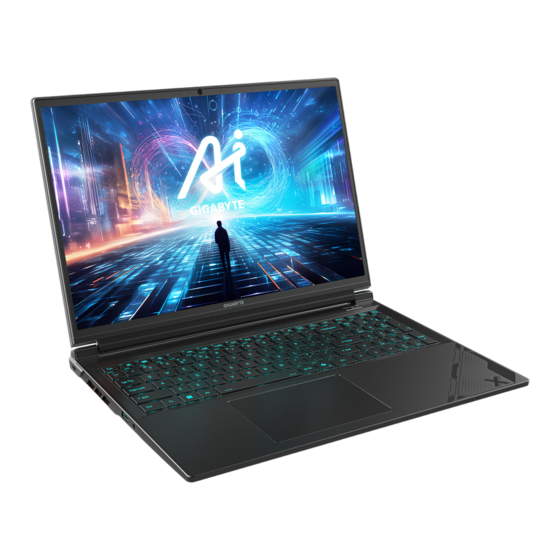
Gigabyte G6X C6LG Bedienungsanleitung
Inhaltsverzeichnis
Quicklinks
Inhaltsverzeichnis

Verwandte Anleitungen für Gigabyte G6X C6LG


Inhaltszusammenfassung für Gigabyte G6X C6LG
- Seite 1 USER MANUAL V1.0...
- Seite 4 Hotkeys Fn +~ Fn + F1 Fn + F2 Fn + F3 Fn + F5/F6 Fn + F7 Fn + F8/F9 Fn + F10 Fn + F11 Fn + F12 NumLK Fn+ ScrLK Caps Lock Fn+ Esc Fn+ ! Fn + Backspace Fn + Fn + Fn +...
- Seite 5 Smart USB Backup Guide WARNING • • • • • • •...
- Seite 6 Recovery Guide System Recovery (Restore your laptop operating system) Note • • Launch System Recovery to factory default. All ready to go...
- Seite 7 Recovery Guide There are two options for system recovery • • Caution • •...
- Seite 8 Appendix Warranty & Service : https://www.gigabyte.com/Support/Laptop FAQ : https://www.gigabyte.com/Support/Faq...
- Seite 9 Control Center Application Power Modes LED Keyboard...
- Seite 10 Flexikey® Keyboard Macro Statistics...
-
Seite 11: Fan Speed Control
1. Start Record 2. Quick Disable Mouse Macro FAN speed control... - Seite 15 •...
- Seite 16 Windows...
- Seite 17 Windows...
- Seite 30 Fn +~ Fn + F1 Fn + F2 Fn + F3 Fn + F5/F6 Fn + F7 Fn + F8/F9 Fn + F10 Fn + F11 Fn + F12 Fn+ ! Fn + Fn + Fn + Fn + Fn +...
- Seite 33 • •...
- Seite 38 Hotkey wie Bildschirmhelligkeit und Lautstärke. Um einen Hotkey zu aktivieren halten Sie die Fn +~ Start / Pause. (in Audio / Videoprogrammen) Fn + F1 Schaltet das integrierte Touchpad an oder aus. Schaltet dasLCD Display EIN / AUS. Fn + F2 ( Drücken einer beliebigen Taste oder betätigen des Touchpads schaltet den Bilschirm wieder ein ) Fn + F3...
-
Seite 39: Anleitung Zur Smart-Usb-Sicherung
Laufwerk oder laden sie den Treiber von folgender Seite runter: http:// www.gigabyte.com) • Starten Sie nach der Installation das "Smart USB Backup" • Wählen Sie vom Drop-Down Menü... -
Seite 40: Systemwiederherstellung Starten
Anleitung zur Systemwiederherstellung Systemwiederherstellung Das Notebook hat eine versteckte Partition mit einer Kopie des Betriebssystems. Sollten Werkseinstellungen zurücksetzen. Bitte beachten • Wiederherstellungsoption nicht mehr verfügbar und das Gerät muß neu installiert werden. • Die Wiederherstellungsfunktion ist nur verfügbar wenn bereits bei der Auslieferung ein Betriebssystem installiert ist. - Seite 41 Systemwiederherstellung Notebook abschalten und neu starten. Halten Sie während der Einschaltung des Notebooks zum Starten des “Wählen Sie zum Aufrufen der Wiederherstellungseinstellungen Es gibt zwei Optionen zur Systemwiederherstellung • verlieren. • Ihre PC-Einstellungen werden auf die werkseitigen Standardeinstellungen rückgesetzt. Die Wiederherstellung wird aktiviert auf „Ja“.
- Seite 42 Erweiterte Optionen systemwiederherstellung Verwenden Sie einen auf Ihrem PC aufgezeichneten Wiederherstellungspunkt zur Windows-Wiederherstellung. Systemabbildwiederherstellung wieder her. Beheben Sie Probleme, die Windows am Laden hindern. Befehlseingabe Startvorgang-Einstellungen Ändern Sie das Startverhalten von Windows.
-
Seite 43: Anhang
S i e a u f d e r G a r a n t i e k a r t e o d e r d e n G I G A B Y T E - Kundendienstseiten: https://www.gigabyte.com/de/Support/Laptop https://www.gigabyte.com/de/Support/Faq... -
Seite 54: Teclas De Acceso Rápido
Teclas de acceso rápido El ordenador utiliza teclas de acceso directo o combinaciones de teclas para acceder a los controles más utilizados como el brillo de la pantalla y la salida de volumen. Para activar teclas de acceso rápido, mantenga pulsada la tecla <Fn> antes de pulsar la tecla de la combinación de teclas rápidas." Fn +~ Reproducir / Pausa. - Seite 55 "Smart USB Backup" (parael modelo-ni nguno ODD, por favor, utilice el dispositivo ODD USB USB o descargar desde http://www. gigabyte.com) • Ejecute el "Smar t USB Backup" después de terminar la instalación. • Seleccione su disco USB de la lista desplegable y comenzar a crear el disco de recuperación USB.
- Seite 56 Guía de recuperación Recuperación del sistema (Restaurar el sistema operativo) Cuando algo va mal con el sistema operativo de la computadora portátil, el almacenamiento de la computadora portátil tiene una partición oculta que contiene una copia de seguridad completa imagen del sistema operativo que se puede utilizar para restaurar el sistema a los valores predeterminados de fábrica.
- Seite 57 Guía de recuperación Apague y reinicie el equipo portátil. Durante el proceso de encendido del equipo portátil, presione sin soltar la tecla F9 para iniciar la herramienta. (También puede elegir “Continuar” para salir del sistema de recuperación y continuar con Sistema para copia de seguridad de archivos o datos.) Hay dos opciones para la recuperación del sistema: •...
- Seite 58 Opciones avanzadas Restauración del sistema Utilice un punto de restauración grabado en su PC para restaurar Windows. Recuperación a partir de una imagen del sistema Recupere Windows mediante un archivo de imagen del Reparación de inicio Solucione problemas que impiden que Windows se cargue. de problemas.
-
Seite 59: Garantía Y Servicio
Garantía y Servicio: siguiente enlace: https://www.gigabyte.com/Support/Laptop Preguntas frecuentes : FAQ (Preguntas más frecuentes), por favor consulte el siguiente enlace: https://www.gigabyte.com/Support/FAQ... - Seite 62 Kiirklahvid Arvuti kiirklahve või klahvikombinatsioone saab kasutada juurdepääseuks enamikule arvuti funktsioonidest, nagu näiteks ekraani heleduse ja helitugevuse seadmine. Kiirklahvide Fn +~ Mängi/paus (audio-/videoprogrammides) Fn + F1 Puuteplaat sisse/välja LCD valgustuse väljalülitus (Sisselülitamiseks Fn + F2 vajutage mõnd klahvi või kasutage puuteplaati) Fn + F3 Vaigistus sisse/välja Fn + F5/F6...
- Seite 63 U S B O D D - s e a d e t v õ i laadige see alla aadressilt http:// www.gigabyte.com • P ä r a s t i n s t a l l i m i s e l õ p e t a m i s t käivitage "Smart USB Backup".
- Seite 64 Taastejuhend Süsteemitaaste (sülearvuti opsüsteemi taastamine) Kui sülearvuti opsüsteem rikneb, saab kasutada mäluseadme peidetud sektsiooni salvestatud opsüsteemi täielikku varukoopiat süsteemi tehasesätete taastamiseks. Märkus • Kui mäluseade on vahetatud või sektsioon on kustutatud, pole taastamine enam võimalik ja kasutada tuleb taastamisteenust. • SHELL-iga seadmetel pole taastefunktsiooni.
- Seite 65 taastejuhend Lülitage sülearvuti välja ja taaskäivitage. Sülearvuti sisselülitumise ajal hoidke all Taaste sätete sisestamiseks valige „Tõrkeotsing”. (Võite valida ka „Jätka”, et taastesüsteem sulgeda ja Süsteem failide või andmete varundamiseks käivitada.) Süsteemi taastamiseks on kaks võimalust • „Lähtesta arvuti“ Võite valida failide säilitamise või kustutamise ja Windowsi uuesti installida, ilma faile kustutamata.
- Seite 66 Täiendavad valikud Süsteemitaaste Windowsi taastamiseks kasutage arvutisse salvestatud taastepunkti. Süsteemikujutise taaste Taastage Windowsi süsteemi kujutisfaili abil. Käivituse parandamine Lahendage probleeme, mis takistavad Windowsi laadimist. Käsuviip Kasutage käsuviipa täpsema tõrkeotsingu jaoks. Käivitussätted Muutke Windowsi käitumist käivitamise ajal.
-
Seite 67: Garantii Ja Teenindus
Lisa Garantii ja teenindus https://www.gigabyte.com/Support/Laptop KKK (korduma kippuvad küsimused) on saadaval aadressil: https://www.gigabyte.com/Support/Faq... - Seite 70 Utilisation des touches Fonction Votre ordinateur dispose de touches racourcies ou combinaisons de touches pour accéder touche correspondante à la fonction demandée. Fn +~ Lecture/Pause (pour tous les programmes audi/vidéo) Fn + F1 Active ou Désactive le pavé tactile (Touchpad) Fn + F2 une touche ou sur le Touchpad pour rallumer) Fn + F3...
- Seite 71 USB ou les télé charger via http:// www.gigabyte.fr) • E x é c u t e z l e " " S m a r t U S B l’installation.
- Seite 72 Guide du système de restauration Système de restauration (restaurer le système d'exploitation de votre Portable) Quand quelque chose ne va pas avec le système d’exploitation de votre portable, le système complète du système d’exploitation qui peut être utilisée pour restaurer le système en revenant aux paramètres d’usine par défaut.
- Seite 73 Guide de restauration du système Eteignez et redémarrez votre ordinateur. Pendant que l’ordinateur redémarre, appuyée pour lancer l’utilitaire. Choisissez “Troubleshoot” (Résoudre) pour entrer dans les paramètres de restauration. (Vou spouvez également choisir “Continue” (continuer) pour sortir du système de restauration et continuer de démarrez votre portable sous Système pour sauvegarder vos Il y a deux options de restauration : •...
- Seite 74 Options avancées System Restore Restauration du système Utilisez un point de restauration enregistré au préalable sur votre ordinateur pour restaurer votre système. System Image Recovery System Image Recovery : Restauration à partir d’une image système. Restaurer Windows en utilisant une image Startup Repair Réparation du système de démarrage Résoudre les problèmes qui empêchent le chargement de Windows.
-
Seite 75: Foire Aux Questions
Annexes Garantie & service: Concernant la garantie, les services et informations complémentaires, merci de consulter votre carte de garantie ou au site internet GIGABYTE ci-dessous: https://www.gigabyte.com/fr/Support/Laptop Foire Aux Questions: https://www.gigabyte.com/fr/Support/FAQ... - Seite 78 Fn +~ Fn + F1 Fn + F2 Fn + F3 Fn + F5/F6 Fn + F7 Fn + F8/F9 Fn + F10 Fn + F11 Fn + F12 NumLK Fn+ ScrLK Caps Lock Fn+ Esc Fn+ ! Fn + Backspace Fn + Fn + Fn +...
- Seite 79 •...
- Seite 80 Windows...
- Seite 81 Windows...
- Seite 87 Intelligens USB biztonsági mentési útmutató alkalmazással a rendszer meghibásodása esetére. • eredeti lemezkép létrehozásához • t a r t a l m a z ó l e m e z t a z o p t i k a i •...
- Seite 88 Visszaállítási útmutató Rendszer-visszaállítás (A laptop operációs rendszerének helyreállítása) Megjegyzés • • A rendszer-visszaállítás indítása Indulásra készen...
- Seite 89 rendszer-visszaállítási útmutató megadásához. érdekében.) • • az indításhoz. Vigyázat • értékekre. • laptopot.
- Seite 91 Függelék...
- Seite 94 Fn +~ Fn + F1 Fn + F2 Fn + F3 Fn + F5/F6 Fn + F7 Fn + F8/F9 Fn + F10 Fn + F11 Fn + F12 NumLK Fn+ ScrLK Caps Lock Fn+ Esc Fn+ ! Fn + Backspace Fn + Fn + Fn +...
- Seite 95 • • • • • • •...
- Seite 96 • •...
- Seite 97 • • • •...
- Seite 102 Fn +~ Fn + F1 Fn + F2 Fn + F3 Fn + F5/F6 Fn + F7 Fn + F8/F9 Fn + F10 Fn + F11 Fn + F12 NumLK Fn+ ScrLK Caps Lock Fn+ Esc Fn+ ! Fn + Backspace Fn + Fn + Fn +...
- Seite 103 • • • • • • •...
- Seite 104 • •...
- Seite 105 • • • •...
- Seite 110 Fn + F1 Fn + F2 Fn + F3 Fn + F5/F6 Fn + F7 Fn + F8/F9 Fn + F10 Fn + F11 Fn + F12 NumLK Fn+ ScrLK Fn+ ! Fn + Fn + Fn + Fn + Fn +...
- Seite 111 • • • • • • •...
- Seite 112 • •...
- Seite 113 • • • •...
- Seite 119 • • • • • • •...
- Seite 120 • •...
- Seite 121 • • • •...
- Seite 126 Sneltoetsen De computer maakt gebruik van sneltoetsen of toetscombinaties om toegang te krijgen tot de meeste bedieningselementen van de computer, zoals de helderheid van het scherm en het geluidsvolume. Om de sneltoetsen te activeren, houdt u de <Fn>-toets ingedrukt voordat u de andere toets in de sneltoetscombinatie indrukt. Fn +~ Afspelen/ Pauzeren (in Audio/Video programma's) Fn + F1...
- Seite 127 “ Smar t US B Bac kup” (voor niet- ODD-model gebruikt u USB ODD- apparaat of download van ht tp:// www.gigabyte.com • Voer de “Smart USB Backup” uit wanneer de installatie is voltooid. • S e l e c t e e r u w U S B - s c h i j f i n d e...
-
Seite 128: Systeemherstel Starten
Herstelgids Systeemherstel (Herstel van het besturingssysteem van uw laptop) Wanneer er iets mis gaat met het besturingssysteem van de laptop, heeft de opslag van de laptop een verborgen afscheiding met daarin een volledig back-up beeld van het besturingssysteem dat kan worden gebruikt om het systeem te herstellen naar de standaard fabrieksinstellingen. - Seite 129 Herstelgids Zet de laptop uit en start hem opnieuw op. Houd tijdens het inschakelen van de laptop de F9-toets ingedrukt om de tool te starten. Kies "Problemen oplossen" om de herstelinstellingen in te voeren. (U kunt ook kiezen voor "Doorgaan" om het herstelsysteem af te sluiten en door te gaan Er zijn twee opties voor systeemherstel •...
- Seite 130 Geavanceerde opties Systeemherstel Gebruik een herstelpunt dat op uw PC is opgeslagen om Windows te herstellen. Systeembeeldherstel H e r s t e l W i n d o w s m e t b e h u l p v a n e e n s p e c i f i e k systeembeeldbestand.
-
Seite 131: Veelgestelde Vragen
Bijlage Garantie & Service : Ga voor informatie over garantie en service naar de garantiekaart of de GIGABYTE-servicewebsite via onderstaande link: https://www.gigabyte.com/Support/Laptop Veelgestelde vragen : Ga voor FAQ(Veelgestelde Vragen) naar onderstaande link: https://www.gigabyte.com/Support/Faq... -
Seite 142: Teclas De Atalho
Teclas de atalho O computador disponibiliza teclas de atalho ou combinações de teclas para aceder à maioria dos controlos do computador, como o brilho do ecrã e o volume do som. Para ativar as teclas de atalho, mantenha pressionada a tecla <Fn> e pressione a outra tecla da combinação de teclas. - Seite 143 "Smart USB Backup" (para o modelo sem ODD, utilize o partir de http://www.gigabyte.com • A b r a a “ S m a r t U S B B a c k u p ” quando a instalação terminar.
- Seite 144 Guia de recuperação Recuperação do sistema (Restaura o sistema operativo do computador portátil) Quando algo correr mal com o sistema operativo do computador portátil, é possível utilizar uma imagem completa do sistema operativo, armazenada numa partição oculta para Nota • Se o armazenamento tiver sido alterado ou a partição tiver sido eliminada, a opção de recuperação deixará...
- Seite 145 Guia de recuperação do Desligue e reinicie o computador portátil. Durante o processo de arranque, mantenha pressionada a tecla F9 para executar a ferramenta. de recuperação. (Pode também escolher “Continuar” para sair do sistema de recuperação e continuar Existem duas opções para recuperação do sistema •...
- Seite 146 Opções avançadas Use um ponto de restauro gravado no seu PC para restaurar o Windows. Corrigir problemas que impedem o carregamento do Windows. Linha de Comandos Utilizar a Linha de Comandos para resolução avançada de problemas. Alterar comportamento de arranque do Windows.
-
Seite 147: Perguntas Frequentes
Anexo Garantia e Serviço: Consulte informações relacionadas com garantia e serviço no https://www.gigabyte.com/Support/Laptop Perguntas frequentes: Para aceder às perguntas frequentes, consulte o link abaixo: https://www.gigabyte.com/Support/Faq... - Seite 150 Taste rapide Fn +~ Fn + F1 Fn + F2 Fn + F3 Fn + F5/F6 Fn + F7 Fn + F8/F9 Fn + F10 Fn + F11 Fn + F12 NumLK Fn+ ScrLK Caps Lock Fn+ Esc Fn+ ! Fn + Backspace Fn + Fn +...
- Seite 151 Ghid de backup inteligent USB...
- Seite 152 Ghid de recuperare Recuperare de sistem Gata de pornire...
- Seite 153 Ghid de recuperare...
- Seite 166 Fn +~ Fn + F1 Fn + F2 Fn + F3 Fn + F5/F6 Fn + F7 Fn + F8/F9 Fn + F10 Fn + F11 Fn + F12 NumLK Fn+ ScrLK Caps Lock Fn+ Esc Fn+ ! Fn + Backspace Fn + Fn + Fn +...
- Seite 167 Smart USB Backup • • • • • • •...
- Seite 168 • •...
- Seite 169 • • Smart Recovery • •...
- Seite 182 Fn +~ Fn + F1 Fn + F2 Fn + F3 Fn + F5/F6 Fn + F7 Fn + F8/F9 Fn + F10 Fn + F11 Fn + F12 NumLK Fn+ ScrLK Caps Lock Fn+ Esc Fn+ ! Fn + Backspace Fn + Fn + Fn +...
- Seite 183 Smart USB Backup • • • • • • •...
- Seite 184 • •...
- Seite 185 • • Smart Recovery • •...
- Seite 188 Flexikey®...
- Seite 193 • • • • • • •...
- Seite 194 • •...
- Seite 195 • • • •...