Inhaltsverzeichnis
Werbung
Verfügbare Sprachen
Verfügbare Sprachen
Quicklinks
3 YEAR LIMITED WARRANTY: We pride ourselves on the quality
of our products. For complete warranty details and a list of our
worldwide offices, please visit www.targus.com
Features and specifications are subject to change without notice.
All trademarks and registered trademarks are the property of their
respective owners. All rights reserved. ©2020 Manufactured or
Imported by Targus Europe Ltd., Feltham, Middlesex TW14 8HA, UK
Questo manuale d'istruzione è fornito da trovaprezzi.it. Scopri tutte le offerte per
DOCK430EUZ
o cerca il tuo prodotto tra le
migliori offerte di Schede di Memoria e Lettori
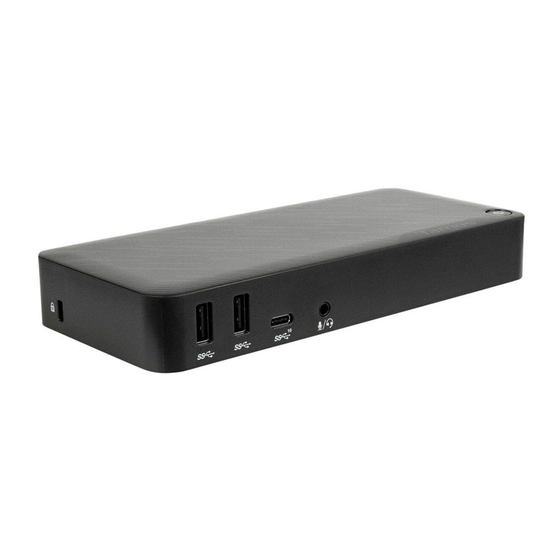
USB-C DISPLAYPORT
ALT MODE DOCKING
STATION WITH
85W POWER PD
User Guide
Targus
Werbung
Inhaltsverzeichnis

Verwandte Anleitungen für Targus DOCK430EUZ


Inhaltszusammenfassung für Targus DOCK430EUZ
- Seite 1 Features and specifications are subject to change without notice. All trademarks and registered trademarks are the property of their respective owners. All rights reserved. ©2020 Manufactured or Imported by Targus Europe Ltd., Feltham, Middlesex TW14 8HA, UK...
- Seite 2 Targus USB-C DisplayPort Alt Mode Docking Station with 85W Power PD Targus USB-C DisplayPort Alt Mode Docking Station with 85W Power PD Table of Contents GB – English ..................... 3 SE – Svenska ................... 62 DE – Deutsch ....................8 TR –...
- Seite 3 Targus USB-C DisplayPort Alt Mode Docking Station with 85W Power PD Targus USB-C DisplayPort Alt Mode Docking Station with 85W Power PD Contents Docking Station Diagram • USB-C DisplayPort Alt Mode Docking Station with 85W Power PD • USB-C cable •...
-
Seite 4: System Requirements
Targus USB-C DisplayPort Alt Mode Docking Station with 85W Power PD Targus USB-C DisplayPort Alt Mode Docking Station with 85W Power PD System Requirements Screen Resolution window allows full configuration of all displays monitors, including: • Display orientation and location modification Hardware •... -
Seite 5: Die Workstation Einrichten
Targus USB-C DisplayPort Alt Mode Docking Station with 85W Power PD USB-C DisplayPort Alt-Modus Dockingstation mit 85 W Schnell-Ladung Inhalt • USB-C DisplayPort Alt-Modus Dockingstation mit 85 W Schnell-Ladung • USB-C-Kabel • Netzadapter Die Workstation einrichten 1. Schließen Sie alle Peripheriegeräte an die Dockingstation an. -
Seite 6: Systemanforderungen
® • Chromebook Audio-Headset-Anschluss Anschluss für USB 3.2 USB C USB 3.2 Unter www.targus.com erhalten Sie eine Liste der neuesten kompatiblen Sicherheitsschloss Gen 1 Gen 1 Betriebssysteme Windows einrichten Damit Windows optimal funktioniert, sollten Ihr Host-PC BIOS (Firmware) USB 3.2... - Seite 7 USB-C DisplayPort Alt-Modus Dockingstation mit 85 W Schnell-Ladung USB-C DisplayPort Alt-Modus Dockingstation mit 85 W Schnell-Ladung Über die Bildschirmauflösung können alle angezeigten Monitore vollständig konfiguriert werden, u. a.: • Ausrichtung der Anzeige und Änderung der Platzierung • Anzeigelayout Hinweise: 1. Für den Anzeigemodus für zwei oder drei Monitore ist ein Host-Grafikadapter erforderlich, der den MST-Modus (Multi-Stream-Transport) unterstützt.
- Seite 8 Prise casque audio Encoche pour USB 3.2 USB C USB 3.2 cadenas Gen 1 Gen 1 2. Connectez la station d’accueil Targus à votre périphérique hôte. USB 3.2 DP++ HDMI Entrée d’alimentation Gen 1 Gigabit USB-C en amont de Ethernet l’ordinateur portable...
-
Seite 9: Configuration Requise
• Mac OS X 10.14 ou une version ultérieure ® • Chromebook Consultez www.targus.com pour obtenir une liste des systèmes d’exploitation Installation d’OS-X compatibles les plus récents Les utilisateurs de MacBook peuvent utiliser la fenêtre Préférences système pour accéder aux affichages et ainsi ajuster les écrans externes. OS-X permet la Installation de Windows configuration de tous les affichages, notamment :... - Seite 10 • Napájecí adaptér AC Instalace pracovní stanice 1. Připojte všechna periferní zařízení k dokovací stanici. 2. Připojte dokovací stanici Targus ke svému hostitelskému zařízení. Specifikace • Podpora režimu displeje, (I) DP++ (ii) DP++ (iii) HDMI • 1 x USB-C upstream (řídicí) port (podporuje dodávku energie 3,0 až 85 W max) •...
-
Seite 11: Systémové Požadavky
• Microsoft Windows 10 (32/64 bitů) ® • Mac OS X verze 10.14 nebo novější ® • Chromebook Navšivte www.targus.com, kde naleznete seznam nejnovějších kompatibilních Konektor audio sluchátek Zamknout slot USB 3.2 USB C USB 3.2 operačních systémů. Gen 1 Gen 1 Nastavení... -
Seite 12: Specifikationer
Nastavení OS-X Pro nastavení externích monitorů mohou uživatelé MacBooku používat Předvolby systému pro displeje. OS-X umožňuje konfiguraci všech displejů, včetně: 2. Tilslut Targus-dockingstationen til din værtsenhed. • Změny orientace a umístění displeje • Rozvržení displejů Poznámky Dvojitý/trojitý... - Seite 13 • Microsoft Windows 10 (32/64-bit) ® • Mac OS X v10.14 eller nyere ® • Chromebook Besøg www.targus.com for en liste over de nyeste kompatible operativsystemer Forbindelse til headset Port til lås USB 3.2. 1. USB C USB 3.2. 1. generation generation Opsætning i Windows...
-
Seite 14: Tekniset Tiedot
Opsætning i OS X MacBook-brugere kan bruge skærmafsnittet under Systemindstillinger til at justere de eksterne skærme. OS X giver mulighed for konfiguration af alle 2. Liitä Targus-telakointiasema isäntälaitteeseesi. skærme, herunder: • Visningsretning og ændring af placering • Skærmlayout Bemærkninger... - Seite 15 Virtanappi Käyttöjärjestelmä (mikä tahansa seuraavista) • Microsoft Windows 10 (32/64-bittinen) ® • Mac OS X v10.14 tai uudempi ® • Chromebook Vieraile osoitteessa www.targus.com luettelo uusimmista yhteensopivista Kuulokemikrofoniliitäntä Lukkopaikka USB 3.2 USB C USB 3.2 Gen 1 Gen 1 käyttöjärjestelmistä...
- Seite 16 OS-X-asetukset MacBook-käyttäjät voivat säätää ulkoisia näyttöjä Järjestelmäasetusten 2. Συνδέστε τον σταθμό σύνδεσης Targus στην κεντρική συσκευή σας. näyttöosiosta. OS-X mahdollistaa kaikkien näyttöjen konfiguroinnin, mukaan lukien: • Näytön suuntauksen ja sijainnin muuttaminen • Näyttöjen asettelu Huomautuksia Mac OS ei tue kaksois-/kolmoisnäyttötilaa Προδιαγραφές...
-
Seite 17: Απαιτήσεις Συστήματος
X v10.14 ή μεταγενέστερο ® • Chromebook Εξάρτημα σύνδεσης Υποδοχή USB 3.2 USB C USB 3.2 ακουστικών Επισκεφθείτε τη διεύθυνση www.targus.com για μια λίστα με τα πιο πρόσφατα κλειδώματος Gen 1 Gen 1 συμβατά λειτουργικά συστήματα Ρύθμιση Windows USB 3.2 DP++ HDMI Είσοδος... - Seite 18 οθόνης. Ρύθμιση OS-X Οι χρήστες MacBook μπορούν να χρησιμοποιήσουν τις Προτιμήσεις Συστήματος 2. Collega la Docking Station Targus al tuo dispositivo host. Οθονών για να προσαρμόσουν τις εξωτερικές οθόνες. Το OS-X επιτρέπει τη διαμόρφωση όλων των οθονών, όπως: • Προσανατολισμός οθόνης και τροποποίηση τοποθεσίας...
-
Seite 19: Requisiti Di Sistema
• Microsoft Windows 10 (32/64-Bit) ® • Mac OS X v10.14 o versione successiva ® • Chromebook Visita www.targus.com per un elenco degli ultimi sistemi operativi compatibili Connettore audio Slot per lucchetto USB 3.2 USB C USB 3.2 per cuffie... - Seite 20 Docking Station USB-C DisplayPort Alt Mode con Power Delivery fino a 85 W Docking Station USB-C DisplayPort Alt Mode con Power Delivery fino a 85 W La finestra Risoluzione dello schermo consente la configurazione completa di tutti i monitor di visualizzazione, tra cui: •...
-
Seite 21: Specificaties
1. Sluit alle randapparatuur aan op het docking station. Audio-aansluiting headset Veiligheidsslot USB 3.2 USB C USB 3.2 Gen 1 Gen 1 2. Sluit het docking station van Targus aan op je hostapparaat. USB 3.2 DP++ HDMI Stroom in Gen 1 Gigabit USB-C-upstream... -
Seite 22: Systeemvereisten
® • Mac OS X v10.14 of hoger ® • Chromebook Ga naar www.targus.com voor een lijst met de nieuwste compatibele besturingssystemen OS-X-configuratie MacBook-gebruikers kunnen de systeemvoorkeuren voor beeldschermen gebruiken om de externe beeldschermen aan te passen. OS-X maakt de Windows-instelling configuratie van alle beeldschermen mogelijk, waaronder:... -
Seite 23: Spesifikasjoner
• AC-strømadapter Konfigurering av arbeidsstasjon 1. Koble alle periferienheter til dokkingstasjonen. 2. Koble Targus-dokkingstasjonen til vertsenheten din. Spesifikasjoner • Visningsmodus som støtter (I) DP++ (ii) DP++ (iii) HDMI • 1 x USB-C-inngang for upstream (støtter Power Delivery 3.0 opptil maks. 85 W) •... - Seite 24 • Microsoft Windows 10 (32/64-bit) ® • Mac OS X v10.14 eller nyere ® • Chromebook Besøk www.targus.com for en liste over de nyeste kompatible operativsystemene Headset-kontakt for lyd Låsespor USB 3.2 USB C USB 3.2 Gen 1 Gen 1 Konfigurering av Windows For å...
- Seite 25 å aktivere visningsmodus med tre skjermer. Konfigurering av OS-X MacBook-brukere kan bruke systeminnstillingene for skjermer til å justere de eksterne monitorene. Med OS-X kan alle skjermer konfigureres, inkludert: 2. Podłącz stację dokującą Targus do urządzenia głównego. • Visningsretning og endring av plassering • Visningslayout Merknader Dobbel/trippel visningsmodus støttes ikke i Mac OS...
-
Seite 26: Wymagania Systemowe
• Microsoft Windows 10 (32/64 bity) ® • Mac OS X w wersji 10.14 lub nowszej ® • Chromebook Odwiedź stronę www.targus.com, aby uzyskać listę najnowszych zgodnych Złącze audio zestawu Gniazdo blokady USB 3.2 USB C USB 3.2 słuchawkowego systemów operacyjnych... -
Seite 27: Especificações
Konfiguracja w systemie OS-X W przypadku MacBooka ustawienia monitorów zewnętrznych można dostosować w Preferencjach systemowych Wyświetlaczy. System OS-X umożliwia konfigurację 2. Ligue a estação de ancoragem Targus no dispositivo anfitrião. wszystkich wyświetlaczy, w tym: • Zmianę orientacji i pozycji wyświetlania, oraz •... -
Seite 28: Requisitos Do Sistema
• Microsoft Windows 10 (32/64-bit) ® • Mac OS X v10.14 ou posterior ® • Chromebook Visite www.targus.com para obter uma lista dos sistemas operacionais compatíveis Conetor de auriculares Ranhura para USB 3.2. USB C USB 3.2. de áudio mais recentes cadeado Ger. - Seite 29 Estação de ancoragem de modo alternativo DisplayPort USB-C com alimentação PD de 85 W Estação de ancoragem de modo alternativo DisplayPort USB-C com alimentação PD de 85 W A janela Resolução de Ecrã permite a configuração total de todos os monitores, incluindo: •...
-
Seite 30: Комплект Поставки
1. Подключите все периферийные устройства к док-станции. Разъем аудиогарнитуры Слот для замка USB 3.2 USB C USB 3.2 Gen 1 Gen 1 2. Подключите док-станцию Targus к главному устройству. USB 3.2 DP++ HDMI Вход питания Gen 1 Gigabit Разъем восходящей... -
Seite 31: Системные Требования
® • Mac OS X v10.14 или более поздней версии ® • Хромбук Посетите www.targus.com для получения списка последних совместимых операционных систем Настройка в OS-X Пользователи MacBook могут использовать системные настройки экранов, Настройка в Windows чтобы настроить внешние мониторы. OS-X позволяет настраивать все... - Seite 32 • Nätadapter Installation av arbetsstation 1. Anslut all kringutrustning till dockningsstationen. 2. Anslut Targus dockningsstation till din värdenhet. Specifikationer • Visningsläge som stöds (I) DP++ (ii) DP++ (iii) HDMI • 1 st. USB-C-port utgående port (stödjer strömförsörjning 3,0 upp till högst 85 W) •...
-
Seite 33: Windows-Installation
Operativsystem (något av följande) • Microsoft Windows 10 (32/64-bitar) ® • Mac OS X v10.14 eller senare ® • Chromebook Besök www.targus.com för en lista över de senaste kompatibla operativsystemen Hörlursuttag Låsningslucka USB 3.2. USB C USB 3.2 Gen 1 Gen 1 Windows-installation För att säkerställa bästa Windows-prestanda ska du se till att du uppdaterar din... -
Seite 34: Teknik Özellikler
OS-X-installation MacBook-användare kan använda systeminställningar för skärmar för att justera de externa skärmarna. OS-X möjliggör konfiguration av alla skärmar inklusive: 2. Targus Dock İstasyonu’nu ana cihazınıza bağlayın. • Skärmorientering och platsändring • Skärmarnas utseende Anmärkningar Dubbel-, trebildskärmläge stöds inte i Mac OS... -
Seite 35: Sistem Gereksinimleri
10 (32/64-bit) ® • Mac OS X v10.14 veya daha yeni sürümü ® • Chromebook En son uyumlu işletim sistemlerinin bir listesi için www.targus.com adresini ziyaret edin. Kulaklık Ses Konnektörü Kilit Yuvası USB 3.2 USB C USB 3.2 Gen 1... - Seite 36 85W Power PD özellikli USB-C DisplayPort Alt Mode Dock İstasyonu 85W Power PD özellikli USB-C DisplayPort Alt Mode Dock İstasyonu Ekran Çözünürlüğü penceresi, tüm ekranların tam olarak yapılandırılmasına izin verir. Şu ayarlar dahildir: • Ekran yönünü ve konumunu değiştirme • Ekranların düzeni Notlar: 1.
- Seite 37 Ranura con bloqueo USB 3.2 USB C USB 3.2 de audio de seguridad Gen 1 Gen 1 2. Conecta la base de conexión Targus al dispositivo anfitrión. USB 3.2 DP++ HDMI Entrada de alimentación Gen 1 Gigabit USB-C upstream Ethernet al portátil...
-
Seite 38: Requisitos Del Sistema
• Mac OS X v10.14 o posteriores ® • Chromebook Visite www.targus.com para obtener una lista de los últimos sistemas operativos Configuración en OS-X compatibles. Los usuarios de MacBook pueden usar las Preferencias del sistema para pantallas para ajustar los monitores externos. OS-X permite la configuración de todas las Configuración en Windows... - Seite 39 • محول طاقة تيار مرتدد إعداد محطة العمل 1. .قم بتوصيل جميع األجهزة الطرفية مبحطة اإلرساء 2. قم بتوصيل محطة إرساءTargus .بالجهاز املضيف الخاص بك املواصفات • 1( ، (دعم وضع العرضDP++ (2( DP++ (3( HDMI • 1 منفذ تيار علويUSB-C ((يدعم توصيل الطاقة 0.3 حتى 58 واط بحد أقىص...
- Seite 40 • Microsoft Windows 10 (32/64 (بت ® • Mac OS ® X اإلصدار 41.01 أو أحدث • Chromebook تفضل بزيارةwww.targus.com للحصول عىل قامئة بأحدث أنظمة التشغيل املتوافقة موصل سامعة الرأس فتحة القفل USB 3.2 USB C USB 3.2 1 الجيل...
- Seite 41 ميكن ملستخدميMacBook استخدام تفضيالت النظام للعروض لضبط الشاشات الخارجية. يتيحOS-X :تكوين جميع الشاشات، مبا يف ذلك • عرض التوجه وتعديل املوقع • تخطيط العروض مالحظات 2. Свържете докинг станцията Targus към вашето хост устройство. عرض الشاشة املزدوج/الثاليث غري معتمد يفMac OS Спецификации • Режим на дисплея, поддържащ (I) DP++ (ii) DP++ (iii) HDMI •...
-
Seite 42: Системни Изисквания
Операционна система (някоя от следните) • Microsoft Windows 10 (32/64 бита) ® • Mac OS X v10.14 или по-нова версия ® • Chromebook Посетете www.targus.com за списък на най-новите съвместими операционни Аудио конектор за Осигурителен слот USB 3.2 USB C USB 3.2 системи слушалки... -
Seite 43: Specifikacije
Потребителите на MacBook могат да настроят външните монитори от менюто „Екрани“ (Displays) в „Системни предпочитания“ (System Preferences). OS-X 2. Spojite priključnu stanicu Targus na svoj glavni uređaj. позволява конфигуриране на всички екрани, включително: • Промяна на ориентацията и местоположението на екрана... -
Seite 44: Zahtjevi Sustava
Operacijski sustav (bilo koji od sljedećih) • Microsoft Windows 10 (32/64-bitni) ® • Mac OS X v10.14 ili noviji ® • Chromebook Posjetite www.targus.com za popis najnovijih kompatibilnih operativnih sustava Poveznik audio slušalica Utor za USB 3.2 USB C USB 3.2 zaključavanje Gen 1... - Seite 45 Postavke sustava OS-X Korisnici računala Macbook mogu koristiti postavke sustava za zaslone (System 2. Csatlakoztassa a Targus dokkolóállomást a gazdagépéhez. Preferences for Displays) za podešavanje vanjskih monitora. OS-X omogućava konfiguraciju svih zaslona, uključujući: •...
- Seite 46 10 (32/64 bites) ® • Mac OS X 10.14 vagy annál újabb verzió ® • Chromebook Audió headset csatlakozó A legfrissebb kompatibilis operációs rendszerek felsorolása a www.targus.com Biztonsági nyílás USB 3.2 USB C USB 3.2 Gen 1 Gen 1 webhelyen található...
- Seite 47 OS-X telepítése A MacBook felhasználók a Kijelzők Rendszerbeállításai segítségével kalibrálhatják 2. Prijunkite „Targus“ prijungimo stotį prie pagrindinio įrenginio. a külső monitorokat. Az OS-X lehetővé teszi az összes kijelző konfigurálását, beleértve: • Kijelző tájolása és helyének módosítása •...
- Seite 48 ® • Chromebook Norėdami rasti naujausių suderinamų operacinių sistemų sąrašą, apsilankykite Garso ausinių jungtis Užrakto lizdas USB 3.2 USB C USB 3.2 www.targus.com Gen 1 Gen 1 „Windows“ sąranka USB 3.2 DP++ HDMI Maitinimo įvadas Kad būtų užtikrintas patikimiausias „Windows“ veikimas, būtinai atnaujinkite Gen 1 Gigabitų...
- Seite 49 OS-X sąranka „MacBook“ naudotojai išoriniams monitoriams reguliuoti gali naudoti sistemos 2. Conectați stația de andocare Targus la dispozitivul gazdă. nuostatas, skirtas ekranams. OS-X leidžia konfigūruoti visus ekranus, įskaitant: • ekrano orientavimą ir vietos keitimą;...
- Seite 50 10 (32/64-bit) ® • Mac OS X v10.14 sau o versiune superioară ® • Chromebook Accesați www.targus.com pentru o listă cu cele mai recente sisteme de operare Mufă audio pentru căști Slot cu blocare USB 3.2 USB C USB 3.2...
-
Seite 51: Obsah Balenia
Configurare OS-X Utilizatorii MacBook pot utiliza Preferințele de sistem pentru ecrane pentru a ajusta monitoarele externe. OS-X permite configurarea tuturor ecranelor, inclusiv: 2. Dokovaciu stanicu Targus pripojte k hostiteľskému zariadeniu. • Orientarea ecranului și modificarea locației • Dispunerea ecranelor Observații Modul de afișare cu două/trei ieșiri nu este acceptat în Mac OS... -
Seite 52: Systémové Požiadavky
• Mac OS® X verzia 10.14 alebo novšia • Chromebook Zoznam najnovších kompatibilných operačných systémov nájdete na adrese Konektor slúchadiel Otvor na zámok USB 3.2 USB C USB 3.2 www.targus.com Gen 1 Gen 1 Nastavenie systému Windows USB 3.2 DP++ HDMI Napájanie Aby ste zaručili čo najlepší... -
Seite 53: Tehnični Podatki
Nastavenie systému OS X Používatelia zariadení MacBook môžu na nastavenie externých monitorov použiť preferencie systému pre displeje. Systém OS X umožňuje konfiguráciu všetkých 2. Združitveno postajo Targus priključite na gostiteljsko napravo. displejov vrátane: • Zmeny orientácie a umiestnenia displeja • Rozloženie displejov Poznámky... -
Seite 54: Sistemske Zahteve
• Microsoft Windows 10 (32/64-bit) ® • Mac OS X v10.14 ali novejši ® • Chromebook Obiščite www.targus.com za seznam najnovejših združljivih operacijskih sistemov Zvočni priključek za slušalke Reža za zaklepanje USB 3.2. USB C USB 3.2. Prve generacije Prve generacije Namestitev v sistemu Windows Najboljše delovanje sistema Windows zagotovite tako, da posodobite BIOS... - Seite 55 Namestitev v sistemu OS-X Uporabniki računalnikov MacBook lahko za prilagoditev zunanjih zaslonov uporabijo Sistemske nastavitve zaslonov. OS-X omogoča konfiguracijo vseh zaslonov, vključno z: 2. Pievienojiet Targus dokstaciju resursierīcei. • usmerjenostjo zaslona in spremembo lokacije • razporeditvijo zaslonov Komentarji Način z dvema/tremi zasloni v operacijskem sistemu Mac ni podprt Specifikācijas...
- Seite 56 • Microsoft Windows 10 (32/64 bitu) ® • Mac OS X v10.14 vai jaunāka versija ® • Chromebook Apmeklējiet vietni www.targus.com, lai iegūtu jaunāko saderīgo operētājsistēmu Audio austiņu savienotājs Bloķēšanas slots USB 3.2 USB C USB 3.2 Gen 1 Gen 1 sarakstu Windows uzstādīšana...
-
Seite 57: Tehnilised Andmed
USB-C DisplayPort alternatīvā režīma dokstacija ar 85 W strāvu PD USB-C DisplayPort Alt-režiimi dokk 85 W Power PD-ga Sisukord Ekrāna izšķirtspējas logs ļauj pilnībā konfigurēt visus displeja monitorus, tostarp: • USB-C DisplayPort Alt-režiimi dokk 85 W Power PD-ga • Mainīt displeja orientāciju un atrašanās vietu •... - Seite 58 Operatsioonisüsteem (mis tahes järgmistest) • Microsoft Windows 10 (32/64-bitine) ® • Mac OS X v10.14 või uuem ® • Chromebook Uusimate ühilduvate opsüsteemide loendi leiate veebisaidilt www.targus.com Helipeakomplekti konnektor Lukustuspesa USB 3.2. 1. USB C USB 3.2. 1. põlvkond põlvkond Windowsi seadistamine Windowsi parima jõudluse tagamiseks värskendage kindlasti oma hostarvuti BIOS-i...
- Seite 59 USB-C DisplayPort Alt-režiimi dokk 85 W Power PD-ga Targus USB-C DisplayPort Alt Mode Docking Station with 85W Power PD Warranty Ekraani eraldusvõime aken võimaldab kõikide kuvarite täielikku konfigureerimist, sh: • kuva suuna ja asukoha muutmine; • kuvarite paigutus. 3 YEAR LIMITED WARRANTY: We pride ourselves on the quality of our products.
-
Seite 60: Technical Support
Targus USB-C DisplayPort Alt Mode Docking Station with 85W Power PD Targus USB-C DisplayPort Alt Mode Docking Station with 85W Power PD FCC Statement Technical Support Tested to Comply For technical questions, please visit: This equipment has been tested and found to comply with the limits of a Class B digital device, pursuant to Part 15 of the FCC Rules.