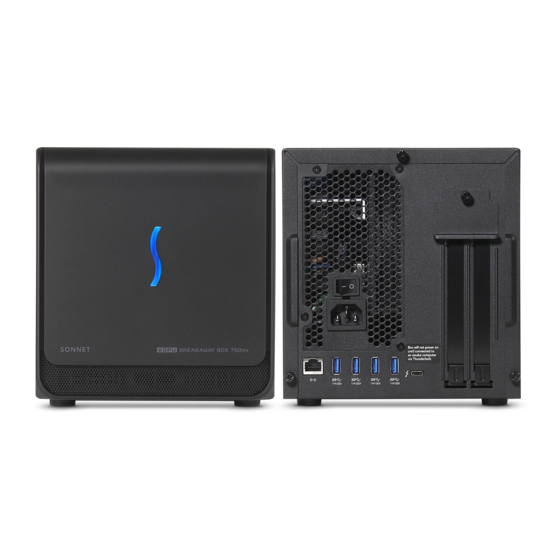
Sonnet eGFX Breakaway Box Developer Edition Schnellstartanleitung
Vorschau ausblenden
Andere Handbücher für eGFX Breakaway Box Developer Edition:
- Schnellstartanleitung (4 Seiten)
Inhaltsverzeichnis
Verfügbare Sprachen
Verfügbare Sprachen
Sonnet eGFX Breakaway Box Developer Edition Quick Start Guide
1
7
4 "
185
Introduction
Congratulations on your purchase! The eGFX Breakaway Box
Developer Edition is a Thunderbolt™ 3-to-PCI Express card
expansion system. This product will enable you to test the
included Sapphire Pulse Radeon RX 580 graphics card with
your Mac
with Thunderbolt 3 ports. The External Graphics
®
Development Kit supports 60W USB-PD charging in order to
charge your MacBook Pro
while using it. It does not support
®
charging at 87W, so 15-inch MacBook Pro computers may
not charge at full speed in all situations. The 8-pin auxiliary
power connector inside the Breakaway Box supports GPU cards
requiring 225W or less power.
Mac Compatibility
• Mac with Thunderbolt 3 Ports
• Latest macOS
beta software (10.13.0 beta or later)
®
System Requirements
While the eGFX Breakaway Box requires no drivers of its own, the
included Sapphire Pulse Radeon RX 580 card you will install does;
Thunderbolt-compatible drivers to enable it to work properly are
required. Beta drivers are included in macOS 10.13.0 beta, or later.
Visit http://developer.apple.com to obtain the software.
Setup Overview
1. Confirm your computer is running, and updated to the
latest version of macOS 10.13.0 beta.
2. Install the Sapphire card into the eGFX Box.
3. Using the included Thunderbolt 3 (40Gbps) cable, connect
the Breakaway Box directly to your computer, power on the
box and then the computer.
4. Connect the included Belkin USB hub to your computer;
refer to the documentation included with the hub.
5. Using System Report, confirm the Breakaway Box and
graphics card are recognized by your computer; see online
user guide for details, if necessary.
6. Configure the card, and any other settings for your setup;
refer to the documentation included with the Sapphire card
for more information.
8"
202
Support
If you encounter an issue with your External Graphics
Development Kit, please use http://bugreport.apple.com to report
the issue to Apple.
You can also ask questions and discuss issues with other
developers also using the External Graphics Development Kit on
the Developer Forums at http://forums.developer.apple.com/.
For issues related to the any of the hardware in the kit (eGFX
Breakaway Box Developer Edition, Sapphire Pulse Radeon RX 580
Card or the Belkin 4-Port USB 3.0 Hub), please contact Sonnet
Technologies Customer Service.
Contacting Customer Service
If further assistance is needed, please contact Sonnet Customer
Service at:
Tel: 1-949-472-2772
(Monday–Friday, 7 a.m.–4 p.m. Pacific Time)
E-mail: support@sonnettech.com
When you call Sonnet's Customer Service, have the following
information available so the customer service staff can better
assist you:
• Product name
• Serial number of that product
• Computer model
• Operating system version you're using
Visit Our Web Site
For online support files related to the eGFX Breakawy Box, visit
the Sonnet Web site at www.sonnettech.com/support/. Click the
Downloads, Manuals & Knowledge Base link, then Thunderbolt,
and then eGFX Breakaway Box.
1
3
13
8 "
340
QSG-GPU-350WD-TB3-E-A-052417
Inhaltsverzeichnis

Verwandte Anleitungen für Sonnet eGFX Breakaway Box Developer Edition

Inhaltszusammenfassung für Sonnet eGFX Breakaway Box Developer Edition
-
Seite 9: Einführung
Sonnet eGFX Breakaway Box Developer Edition Quick Start Guide – Deutsche 8" 8 " 4 " 6. Konfigurieren Sie die Karte sowie andere Einstellungen Einführung für ihr persönliches Setup; siehe Dokumentation, die der Herzlichen Glückwunsch zum Erwerb dieses Produktes! Die Grafikkarte beigefügt ist. - Seite 10 Grafikkarte Installationsschritte 1. Packen Sie die eGFX Breakaway Box aus und stellen Sie diese auf eine ebene Oberfläche. 2. Öffnen Sie die drei Rändelschrauben, welche die Gehäuseabdeckung sichern. (Siehe Abbildung 1) Abbildung 1 3. Greifen Sie die erhöhten Flächen am hinteren Ende der Box und ziehen Sie die Gehäuseabdeckung zu sich.
- Seite 11 Grafikkarte Installationsschritte Achtung: Stellen Sie sicher, dass elektrische Komponenten nicht durch statische Elektrizität beschädigt werden, während Sie mit der Computerelektronik arbeiten. Vermeiden Sie Arbeitsräume mit Teppich. Fassen Sie PCIe-Karten nur an deren Rändern an und vermeiden Sie das Anfassen von Stecker-Pins und Leiterbahnen. Fassen Sie außerdem nicht die Platine der eGFX Box an.
- Seite 12 Grafikkarte Installationsschritte 11. Greifen Sie die Seiten der Gehäuseabdeckung und spreizen Sie diese leicht, führen Sie anschließend die Abdeckung vertikal über der offenen eGFX Box nach unten. Drücken Sie sodann die Seiten der Gehäuseabdeckung leicht zusammen, damit die Führungsschienen in der eGFX Box einrasten können.